You have seen the “BCC” field sitting quietly in your email composer for years. Most people ignore it. Some click it by accident. Very few actually understand what it does — and that gap causes real, embarrassing problems every single day.
BCC stands for Blind Carbon Copy. It lets you send a copy of an email to one or more recipients while keeping them completely hidden from everyone else on the thread. No one in the “To” or “CC” fields will ever know those people existed on that email.
That single feature can protect your contacts’ privacy, keep your professional life organized, and save you from the kind of mass-email disaster that ends careers at small businesses.
This guide covers exactly what BCC means, how it works under the hood, when to use it — and the five costly mistakes that even experienced professionals make with it.
What Does BCC Mean in Email?
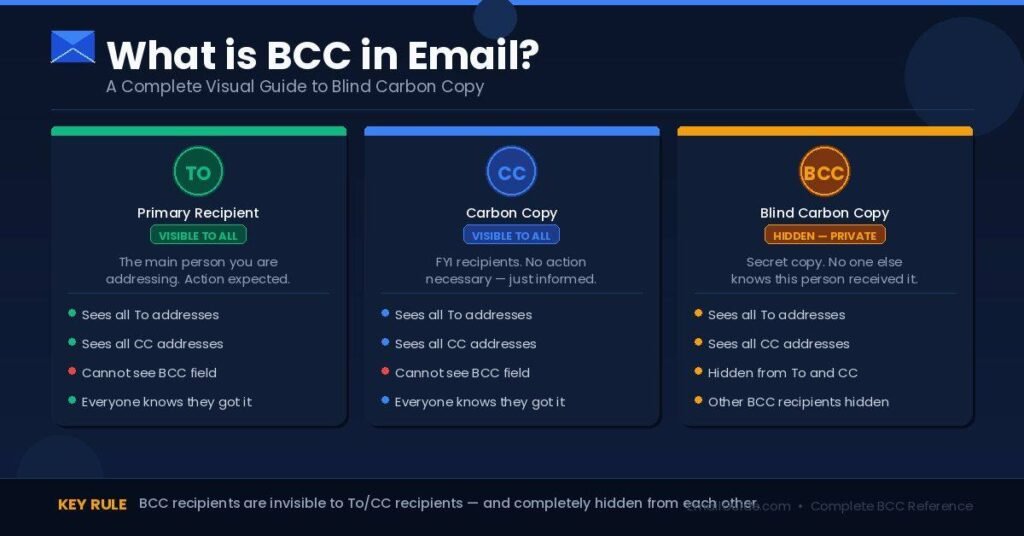
BCC stands for Blind Carbon Copy — a field that delivers a hidden copy of your email to one or more recipients without revealing their identity to anyone else on the message. Unlike CC (Carbon Copy), BCC recipients are completely invisible to the “To” recipients, the “CC” recipients, and even to each other.
The term itself is older than the internet. Before word processors, office workers used sheets of carbon paper layered between pages to make duplicate copies while typing. A “CC” meant a visible copy — everyone knew who got one. A “BCC” was a secret copy, made without the primary recipient knowing.
Modern email inherited both terms. The mechanics are different, but the intent is identical: BCC creates a private, invisible copy.
Here is what actually happens at the server level when you send an email with BCC recipients: your email client sends the message to your outgoing mail server (via SMTP protocol), and that server strips the BCC field entirely from the message header before forwarding to “To” and “CC” recipients. Then it delivers a separate, individual copy to each BCC address — but with the BCC field removed from what those recipients receive too.
This is not a cosmetic trick. The BCC data is genuinely absent from the email headers that any recipient inspects. Someone would need access to your outgoing mail server logs to find evidence of BCC usage — something ordinary recipients never have.
What Each Party Actually Sees
| Recipient | Sees “To” Field | Sees “CC” Field | Knows About BCC? |
|---|---|---|---|
| To Recipient | ✅ Yes — all To addresses | ✅ Yes — all CC addresses | ❌ No trace |
| CC Recipient | ✅ Yes — all To addresses | ✅ Yes — all CC addresses | ❌ No trace |
| BCC Recipient | ✅ Yes — all To addresses | ✅ Yes — all CC addresses | ✅ Only sees their own inclusion |
| Sender | ✅ Yes | ✅ Yes | ✅ Sees all BCC addresses |
One detail that surprises most people: BCC recipients also cannot see each other. If you BCC five colleagues on a message, none of those five knows the other four were included. Each receives what appears to be a separate, private copy of the email.
BCC recipients can see the full “To” and “CC” fields, though. They know who received the email openly — they just know their own involvement is invisible to those people.
How BCC Actually Works Under the Hood
When you send an email with BCC recipients, your mail server runs two separate delivery operations: one for the visible recipients (To and CC) and one for each BCC address. The BCC header is stripped before delivery in both cases, making the concealment technically genuine — not just a display filter.
Understanding this matters because it clarifies what BCC can and cannot do.
The Delivery Process, Step by Step
- You compose an email, add addresses to To, CC, and BCC fields, then click Send.
- Your email client packages the full message — including the BCC field — and sends it to your outgoing SMTP server.
- The SMTP server reads the recipient list. It separates the BCC addresses from To and CC.
- The server delivers the message to To and CC recipients with the BCC field completely removed from the header.
- The server then delivers individual copies to each BCC address, also with the BCC header stripped. Each BCC recipient gets their own copy — not a group copy.
- Your outgoing server may log that BCC was used, depending on your email system configuration.
This is why corporate IT departments and email compliance software can sometimes detect BCC usage — not from the email itself, but from server-side logs. For standard personal and professional email (Gmail, Outlook, Apple Mail), that logging is not visible to ordinary recipients.
The Critical Reply-All Risk
Here is the technical detail that causes the most BCC disasters: BCC recipients who click “Reply All” will accidentally expose themselves.
When a BCC recipient receives the email, the “Reply” button sends their response only to you (the sender). But “Reply All” sends to the entire “To” and “CC” list — which immediately reveals to those people that a hidden party was on the original email.
This happens because the BCC recipient’s email client constructs the “Reply All” based on the visible recipients in the message they received — and they are not on that visible list, so the system does not “protect” them from responding publicly.
This is not a bug. It is how the protocol works. Knowing it is the difference between using BCC confidently and using it dangerously.
How to Add BCC in Gmail, Outlook, and Apple Mail
Adding a BCC field to any email takes under five seconds in every major email client. Most apps hide it by default to keep the compose window clean — but it is always one click or one keyboard shortcut away.
In Gmail (Web and Mobile)
Desktop:
- Open Gmail and click Compose to start a new message.
- Look at the top-right corner of the recipient area — click BCC (it sits next to “CC”).
- The BCC field opens below the CC line. Type addresses separated by commas.
- Compose your message and click Send.
Mobile (Android/iOS):
- Tap the compose icon (pencil) to open a new draft.
- Tap the small downward arrow (˅) or chevron to the right of the “To” field.
- The CC and BCC fields expand below. Tap BCC and enter your addresses.
- Send as normal.
In Microsoft Outlook (Desktop)
- Click New Email to open a compose window.
- Navigate to the Options tab in the top ribbon.
- Click BCC in the “Show Fields” section. The BCC line appears in your compose window.
- Alternatively, in the compose window, click the To button — a contact picker opens with a BCC field at the bottom.
- Add BCC recipients and send.
Pro tip: In Outlook, you can make BCC permanently visible on all new emails. Go to Options → BCC → it stays enabled for your session. To make it permanent, add the BCC field through the View Header settings.
In Apple Mail (macOS)
- Open a new compose window (Command + N).
- Click View in the menu bar → select BCC Address Field.
- Or use the keyboard shortcut Shift + Command + B to toggle BCC on and off instantly.
- Type your hidden recipients and send.
In Yahoo Mail
- Click Compose to open a new message.
- Next to the “To” field, click the BCC link (it appears as small text to the right).
- Enter addresses and send.
In my testing across all of these platforms, BCC delivery works identically regardless of which email client the sender or recipient uses. A Gmail user BCC-ing an Outlook user functions exactly the same as the reverse — because BCC is a server-level SMTP protocol feature, not a client-specific one.
When Should You Use BCC? Real Scenarios That Actually Happen
BCC belongs in three core situations: protecting the privacy of recipients who do not know each other, preventing reply-all chaos on large threads, and maintaining a discreet record of communications for professional or legal purposes.
Here are the specific, real-world scenarios where BCC is the right choice.
1. Sending a Mass Announcement to a Contact List
If you are emailing 30+ people who do not know each other — a client newsletter, a company-wide update, a PTA announcement, a tenant notice — putting everyone in “To” or “CC” exposes every single person’s email address to every other person on the list.
This is both a privacy violation and, for businesses, potentially a legal one. The CAN-SPAM Act (US) and GDPR (EU) treat mass email practices seriously. Sending 200 addresses in a “To” field is the kind of mistake that generates formal complaints and, in professional contexts, damaged relationships.
The correct approach: put your own address in “To,” and put every recipient address in “BCC.” Each person receives the email seeing only their own address — clean, private, and legally sound.
For lists over 50 people, use a dedicated email marketing platform (Mailchimp, Klaviyo, ConvertKit, Constant Contact). BCC does not track opens, manage unsubscribes, or comply with bulk-email laws the way those platforms do. BCC is a stopgap, not a marketing solution.
2. Silently Looping In a Manager or Legal Team
One of the most common professional uses: you are sending a formal written communication — a documented warning, a contract notice, a client complaint response — and you need your manager, HR, or legal team to have a copy without the recipient knowing.
A manager BCC-ing the HR director on a disciplinary email. A sales rep BCC-ing their legal team on a contract negotiation email. A landlord BCC-ing their property management attorney on a notice-to-cure letter. In each case, the primary recipient gets a clean, professional message — and the invisible third party has a documented record.
3. Protecting Your Professional Contact List
Your client list is a business asset. If you CC all your clients on a group email, every client can see every other client’s email address. A competitor who is also a client now has your full client roster.
BCC keeps your network private. This applies to consultants, freelancers, real estate agents, recruiters — anyone whose contact database represents years of relationship-building.
4. Introducing Two Parties, Then Stepping Out
A recruiter sends a candidate’s resume to a hiring manager and BCC-s the candidate. The hiring manager receives the full introduction email; the candidate is on BCC and can confirm the email was sent without being looped into the hiring manager’s reply. This keeps the thread clean and avoids an awkward three-way CC chain.
A common variant: making a business introduction between two contacts, then BCC-ing yourself out of the conversation so the two parties can talk directly without you being on every subsequent reply.
5. Archiving Your Own Communications
BCC-ing your personal email address on important work emails — contracts, agreements, sensitive discussions — creates a personal backup copy you control, independent of your company email account. This is especially useful when transitioning between jobs or managing a freelance client relationship where you may lose access to an account.
BCC vs CC vs To: What Is the Real Difference?
“To” is for the primary recipient who must act or respond. “CC” is for people who need to see the email but are not the main audience. “BCC” is for anyone who should receive a copy without others knowing. Using the wrong field creates confusion at best and privacy violations at worst.
A practical illustration: a marketing manager (Sarah) is sending a contract renewal notice to a client (James). Her CEO (Laura) should be informed. The legal department should have a record. Here is the correct field assignment:
- To: james@clientcompany.com
- CC: sarah@mycompany.com (herself, for her own sent record)
- BCC: laura@mycompany.com, legal@mycompany.com
James receives a professional, clean email. He sees Sarah’s address in CC. He has no indication that the CEO and legal team received a copy. Laura and legal receive the full message exactly as James did — with no BCC label on their copy, but they know they were BCC’d because they received it without being in the To or CC field.
The Functional Differences at a Glance
“To” Field
- Direct, primary communication. Recipient is expected to read, act, or respond.
- All other recipients can see every “To” address.
- Use when you are speaking to that person specifically.
“CC” (Carbon Copy) Field
- Transparent inclusion for awareness or reference. No action expected.
- All other recipients can see every “CC” address.
- Use when someone should be informed but is not the focal point.
- Never CC someone who doesn’t need to be on every reply. Reply-All to a large CC list is one of the most common office email complaints.
“BCC” (Blind Carbon Copy) Field
- Hidden inclusion. Only the sender knows the full recipient list.
- BCC recipients cannot see each other.
- Use for privacy, large lists, silent record-keeping, or sensitive oversight.
- After the initial send, BCC recipients are effectively off the thread. They do not receive future replies unless you BCC them again.
Common BCC Mistakes That Can Backfire
Most BCC errors fall into two categories: accidental exposure (when a BCC recipient hits Reply All) and privacy violations (when CC is used instead of BCC on large lists). Understanding these mistakes in advance prevents the kind of email disasters that are genuinely hard to walk back.
Mistake 1: The Reply-All Reveal
A BCC recipient hits “Reply All” instead of “Reply.” Their message goes to the entire To and CC list. In a single click, it becomes obvious to every primary recipient that there was a hidden party on the original email.
How to prevent it: When you BCC someone on a sensitive email, send them a separate quick note immediately after: “You’re BCC’d on the email I just sent to [Name]. Please only reply directly to me, not Reply All.”
Mistake 2: Exposing Hundreds of Emails in a “To” Field
This happens every week at small businesses, nonprofits, and HOAs across the country. Someone composes a group update, puts 150 email addresses in the “To” field, and clicks Send. Every recipient now has a database of 149 other people’s email addresses — without their consent.
Beyond the privacy issue: many of those recipients may mark the email as spam, which damages your domain’s sender reputation. Multiple complaints can get your domain flagged or blacklisted by major providers.
Mistake 3: Using BCC for Deceptive Surveillance
BCC has legitimate confidentiality uses, but context matters. Using BCC to secretly copy a third party in a conversation where the other person has a reasonable expectation of privacy — or in ways that violate your company’s communication policies — can be a professional or legal problem.
Employment attorneys specifically advise caution around secretly forwarding or copying HR or legal on employee communications without proper documented justification. When in doubt, consult your organization’s email policy.
Mistake 4: Assuming BCC Is 100% Invisible in All Enterprise Environments
On consumer platforms (Gmail, Outlook.com, Yahoo Mail), BCC is effectively invisible to recipients. On enterprise email systems with compliance logging, archiving software, or IT administrator oversight, BCC usage may appear in server-side logs.
If you are handling genuinely sensitive legal, HR, or compliance-related communications, verify your organization’s email archiving policy with your IT team before relying on BCC for privacy.
Mistake 5: Using BCC When a Mailing Platform Is the Right Tool
For any recurring communication to a list of more than 30–50 people, BCC is the wrong tool. A proper email marketing platform:
- Automatically manages unsubscribe requests (legally required in the US under CAN-SPAM)
- Tracks open rates and click rates
- Prevents your personal domain from being flagged as a spam sender
- Lets recipients unsubscribe without emailing you directly
Sending monthly newsletters via Gmail BCC is a compliance and deliverability risk. Platforms like Mailchimp (free up to 500 contacts), ConvertKit, or Brevo handle all of this automatically.
Frequently Asked Questions About BCC in Email
Can someone tell if they were BCC’d on an email? No. A BCC recipient receives the email like a normal message. There is no label, header marker, or any visible indication that they were BCC’d rather than directly addressed. They can see the “To” and “CC” fields, but their own inclusion is invisible to those recipients.
Does BCC work the same across Gmail, Outlook, and Apple Mail? Yes. BCC is a standard feature of the SMTP protocol that all email providers use globally. It works identically regardless of which provider the sender or recipient uses. A Gmail BCC works the same as one sent from Outlook or Yahoo Mail.
Is it legal to BCC someone without telling the primary recipient? In most cases, yes — BCC is a standard, legal feature. However, what you share via BCC can carry legal implications. Secretly BCC-ing parties on confidential communications in ways that violate NDAs, employment agreements, or court orders can create liability. The feature itself is legal; the content and context determine the risk.
What happens if a BCC recipient replies to the email? If they click “Reply,” their message goes only to you (the sender) — no exposure. If they click “Reply All,” their response goes to the To and CC recipients, which reveals they were included. This is one of the most common BCC-related email accidents and is worth explicitly warning BCC recipients about.
Can I BCC myself on emails I send? Yes, and it is a smart professional habit. BCC-ing your own address creates a searchable copy of the email in your inbox, separate from your Sent folder. This is useful for important client communications, documented agreements, or any situation where you want an easy-to-find personal archive.
Conclusion
BCC is one of the most powerful, most underused tools in everyday email communication. Used correctly, it protects your recipients’ privacy, keeps sensitive threads professional, and gives you clean documentation without creating awkward Reply-All situations.
The logic is straightforward: “To” for direct recipients. “CC” for visible transparency. BCC whenever you need privacy, large-list protection, or silent record-keeping.
The feature has been part of email since the earliest days of the protocol — not as a loophole, but as an intentional design decision to mirror the discreet carbon copies that professionals used for decades before computers existed.
The next time you compose a group email or a sensitive professional message, stop before hitting Send and ask: Should these recipients see each other’s addresses? Should this third party be visibly included? If the answer to either question is “no,” BCC is exactly the right tool.
Action step: Open your email client right now and locate the BCC field. In Gmail, try Composing a message and clicking “BCC” — you will see it takes one second. In Outlook, check the Options tab. Make it a habit to evaluate BCC on every group email you send. That single habit prevents the most common, most embarrassing email mistakes professionals make.
The answers you need are closer than you think—explore our curated blog guides.