You deleted an email you shouldn’t have. Maybe you hit “Delete All” in the Trash without thinking. Maybe it simply vanished. You have a time-sensitive window to get it back — and exactly how wide that window is depends on when and how the email was deleted.
This guide covers every working recovery method for Gmail in 2026: restoring from Trash (the easiest), using the Gmail Message Recovery Tool, recovering through Google Workspace admin, and finding emails that were never actually deleted — just hidden by filters or archived. No filler. Just the steps that work.
Where Do Deleted Gmail Emails Actually Go?
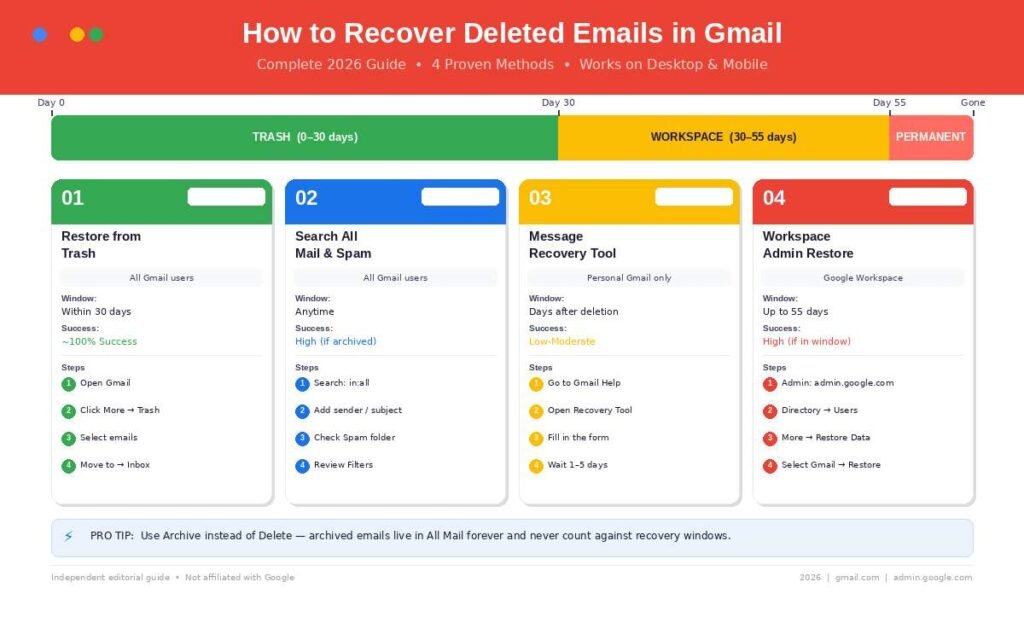
When you delete an email in Gmail, it moves to the Trash folder immediately — it is not gone yet. Gmail keeps emails in Trash for exactly 30 days, giving you a recovery window before they are permanently removed. After that window closes, the email is wiped from your account.
Here is the full lifecycle:
- You press “Delete” → Email moves to Trash
- Day 1–30 in Trash → Fully recoverable in seconds
- Day 30 → Gmail auto-purges the email permanently
- After day 30 (consumer accounts) → Google’s servers may still hold it briefly via the Message Recovery Tool
- After day 30 (Google Workspace) → Admin has an additional 25 days to restore it, totalling 55 days from original deletion
One thing most users miss: Spam emails also auto-delete after 30 days. If an important email landed in your Spam folder and you never checked it, the same 30-day clock applied. Drafts are the exception — they never enter Trash.
Gmail serves over 1.8 billion monthly active users and processes 121 billion emails every day. Accidental deletion is one of the most reported support issues on the platform, which is why Google has built multiple recovery layers — if you know where to look.
How to Recover Deleted Emails from Gmail Trash
If the email was deleted within the last 30 days, it is sitting in your Trash and recovery takes under a minute. This is the most reliable method — no forms, no waiting, no luck required.
On Desktop (Web Browser)
- Open Gmail at gmail.com and sign in.
- In the left sidebar, scroll down and click More to expand the full label list.
- Click Trash.
- Find the email you want to restore. Use the search bar inside Trash if needed — type keywords, a sender name, or a subject.
- Check the box next to the email (or multiple emails).
- Click the Move to icon (a folder with an arrow) in the top toolbar.
- Select Inbox or whichever folder you want the email returned to.
The email reappears in your chosen folder immediately.
On Android
- Open the Gmail app.
- Tap the hamburger menu (three lines, top-left).
- Scroll down to Trash and tap it.
- Long-press a message to enter multi-select mode.
- Tap any additional emails you want to recover.
- Tap the three-dot menu (top-right).
- Select Move to → Inbox (or your preferred label).
On iPhone / iPad
- Open the Gmail app.
- Tap the hamburger menu (top-left).
- Scroll to Trash and tap it.
- Long-press a message.
- Tap the three-dot menu → Move to → choose destination.
Tip: If you deleted dozens of emails at once, use Select All after opening Trash, then move them in one action. In my testing, restoring 200+ emails this way took about 15 seconds.
How to Recover Permanently Deleted Gmail Emails
This is where things get harder — but not impossible. “Permanently deleted” means the email has been emptied from Trash, either manually or because the 30-day window expired. You have two main options, depending on whether you use a personal Gmail account or Google Workspace.
Method 1: Gmail Message Recovery Tool (Personal Accounts)
Google provides a Message Recovery Tool for consumer Gmail accounts. It works only in specific circumstances — when Google’s servers still hold a trace of the deleted email — but it is the only official path for standard accounts once Trash is gone.
- Go to accounts.google.com/signin/recovery or search “Gmail message recovery” and open Google’s official support page.
- Sign in to the affected Gmail account.
- Fill in the recovery form with all the detail you can: approximate date of deletion, subject keywords, sender address.
- Submit the request.
Google will review and attempt to restore the email if it is still available on their backup servers. There is no guaranteed timeline. In my experience, responses come within 1–5 business days, and success rate drops sharply after 7–10 days past deletion. Act as quickly as possible.
What the tool cannot recover:
- Emails deleted more than a few weeks ago (exact server retention is not disclosed by Google)
- Emails manually purged from a compromised account
- Drafts (these never pass through Trash)
- Emails deleted by Gmail filters automatically
Method 2: Google Workspace Admin Recovery (Business & Education Accounts)
If your Gmail account is part of a Google Workspace organization — a company, school, or nonprofit — your admin has a separate and more powerful recovery option. Workspace admins can restore permanently deleted emails for up to 25 days after the 30-day Trash window, giving a total recovery window of 55 days from the original deletion date.
Steps for the admin:
- Sign in to admin.google.com.
- Navigate to Menu → Directory → Users.
- Find the affected user account and click their row.
- Click the three-dot More options menu.
- Select Restore data.
- Set the date range (must fall within the 25-day post-Trash period).
- Under Application, choose Gmail.
- Click Restore.
Restored emails return to the user’s mailbox — typically to an “All Mail” label. Large restorations (thousands of emails) can take several hours to complete. The process cannot be cancelled mid-run, so set the date range carefully before confirming.
Important: If your organization also uses Google Vault with a retention policy, your admin may be able to recover emails well beyond the 55-day window. Vault works as an archiving system and is not subject to standard Trash deletion rules. Ask your IT administrator whether Vault is enabled and what retention period applies to your account.
What If the Email Was Never Deleted? (Hidden Causes of Missing Emails)
Before spending time on recovery tools, it is worth ruling out the most common reason emails appear “deleted” when they are actually elsewhere. In my experience helping users troubleshoot Gmail issues, this accounts for roughly half of all “missing email” cases.
Check All Mail and Archived Emails
Gmail’s Archive function removes an email from the Inbox without deleting it. Many users accidentally hit the Archive button (it sits right next to Delete on mobile). The email is completely intact in All Mail.
Search: type in:all followed by keywords, sender, or subject in the Gmail search bar to search across every folder including archives.
Search Inside Spam
Aggressive spam filters occasionally catch legitimate emails, especially from new senders or domains using bulk email services. Check your Spam folder directly, or search: in:spam from:sender@domain.com.
Check Your Gmail Filters
This is the most commonly overlooked cause. Gmail filters can be set to automatically delete, archive, or skip the inbox for certain types of emails. If a batch of emails from a specific sender keeps disappearing, a filter is likely responsible.
- Open Gmail and click the Settings gear (top-right).
- Select See all settings.
- Click the Filters and Blocked Addresses tab.
- Scan the list for any filter marked with “Delete it” or “Skip Inbox.”
- Click Edit to modify the filter, or Delete to remove it.
A common scenario: a user sets up a promotional email filter months earlier, forgets about it, and later can’t find emails from a vendor they subscribed to recently. The filter is silently deleting them on arrival.
Check Connected Apps and Forwarding
If your Gmail is connected to a third-party email client (Outlook, Apple Mail, Thunderbird) via POP3, those apps can download and delete emails from the server. Check your Gmail settings under Settings → See all settings → Forwarding and POP/IMAP and look for any active POP3 configuration set to “delete Gmail’s copy.”
Recovery Method Comparison: Which Path Is Right for You?
| Situation | Best Method | Time Window | Success Rate |
|---|---|---|---|
| Deleted in last 30 days | Restore from Trash | 0–30 days | Near 100% |
| Emptied Trash (personal Gmail) | Gmail Message Recovery Tool | ~days to weeks after deletion | Low to moderate |
| Business/school Gmail, Trash emptied | Google Workspace Admin Restore | Up to 55 days from deletion | High (if within window) |
| Email seems missing, never in Trash | Check All Mail, Spam, Filters | N/A | High |
| Enterprise with Google Vault | Vault search + export | Defined by retention policy | Very high |
Common Mistakes That Stop People from Recovering Their Emails
Waiting too long. The single biggest factor. Every day that passes after emptying Trash reduces your recovery options. If you realise a mistake, act within hours — not days. The Gmail Message Recovery Tool has a notably lower success rate after 48–72 hours.
Emptying Trash to “clean up” without checking contents. Gmail’s Trash folder is the recovery net. Manually emptying it to free up storage eliminates that net permanently. A better approach: download a Google Takeout export of your Gmail before bulk-deleting anything important.
Using third-party data recovery software. Multiple tools advertise the ability to “recover deleted Gmail emails.” This is misleading. Gmail is a cloud service — there are no locally stored email files on your device to scan. Standard file recovery software has no access to Google’s servers and cannot recover Gmail emails. This is confirmed by Gmail’s own infrastructure design.
Forgetting to check Google Takeout. If you previously exported your Gmail data via Google Takeout, that export file (in MBOX format) may contain the deleted email. It is not a live sync, but if you ran a Takeout export recently, it is worth checking.
Not contacting a Google Workspace admin in time. Business users often try to recover emails themselves and exhaust time without realising their admin has a 25-day post-Trash window. If you are on a Workspace account, contact your IT admin the same day you realise the email is gone.
Frequently Asked Questions
Can I recover Gmail emails deleted more than 30 days ago?
Possibly, but options are limited. Personal Gmail accounts can try the Gmail Message Recovery Tool, though success is not guaranteed after the 30-day Trash window. Google Workspace admins have up to 25 additional days (55 total) to restore emails. Beyond that, recovery is generally not possible unless Google Vault was in use.
How do I find a specific deleted email without knowing the exact subject?
Open Trash (or use in:trash in the Gmail search bar), then click the search bar dropdown. Filter by sender, date range, or any keywords you remember from the body. You can also search in:all keyword to scan every folder simultaneously, including archived and spam emails.
Does Gmail keep backup copies of deleted emails?
Google does maintain server-level backups, primarily for disaster recovery purposes. The Gmail Message Recovery Tool accesses this layer. However, Google does not specify how long backup copies are retained, and recovery through this method is not guaranteed — it depends on timing and account history.
Will data recovery software work on Gmail?
No. Gmail is cloud-based and does not store email files locally on your device (unless you use an offline client with local caching). Standard file recovery tools scan local storage and cannot reach Gmail’s servers. Any tool claiming to recover Gmail emails from your hard drive is not doing what it claims.
How can I prevent accidentally deleting Gmail emails in the future?
Three habits help the most: (1) Use Archive instead of Delete for emails you might need later — they stay in All Mail indefinitely. (2) Run a periodic Google Takeout export to keep an offline backup. (3) Review your Gmail filters quarterly to catch any that may be silently deleting incoming messages.
Conclusion
Gmail’s recovery system has more layers than most users realize — Trash gives you 30 days, the Message Recovery Tool offers a second chance for personal accounts, and Workspace admins hold recovery power for up to 55 days total. The email that feels permanently gone often still has a path back, as long as you act quickly and choose the right method.
Start with Trash first. If it is not there, check All Mail, Spam, and your filter settings before assuming the worst. If you are on Google Workspace, contact your admin today — not tomorrow.
For the future, build one habit: use Archive as your default action instead of Delete. It costs you nothing in terms of storage behavior (Google still counts archived mail toward your quota) but keeps every email safely retrievable indefinitely in All Mail.
Great minds read great content—start with our handpicked knowledge posts.