Why Is Your Android Storage Full So Quickly?
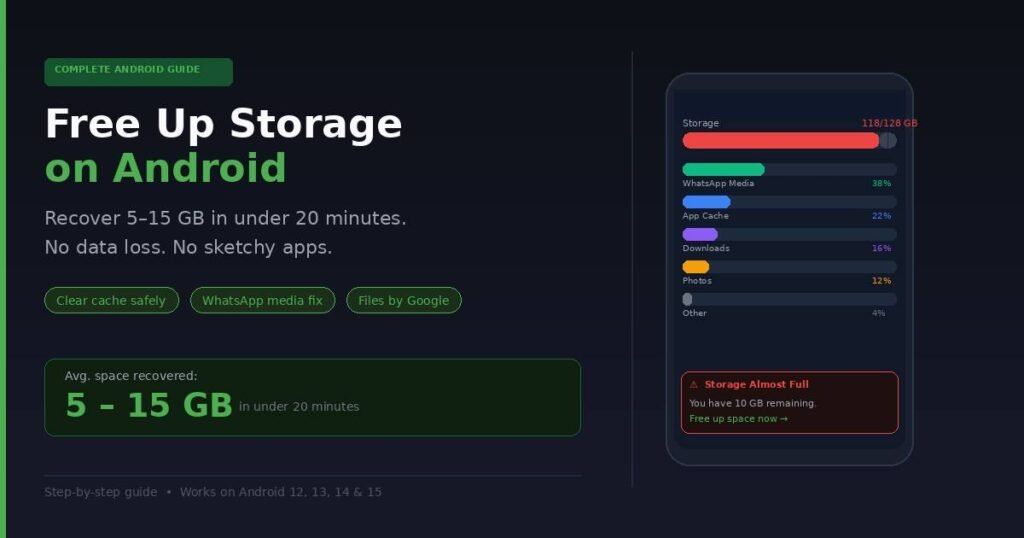
The “Storage Almost Full” alert appears when your available internal storage drops below roughly 10–15% of your total capacity. Android reserves this buffer for system operations, app updates, and temporary files — so on a 128 GB phone, you may see warnings when you still have 15–18 GB left. That is not a bug. It is how the OS works.
The usual culprits, in order of how much space they typically waste:
| Category | Typical Space Wasted | Risk of Deleting |
|---|---|---|
| WhatsApp / Telegram media | 2–10 GB | Low (media saved to chat history) |
| App cache (YouTube, Spotify, Chrome) | 2–5 GB | Zero (rebuilds automatically) |
| Downloads folder | 1–4 GB | Low (mostly forgotten files) |
| Duplicate photos / screenshots | 500 MB–2 GB | Low (keep originals) |
| Offline maps (Google Maps) | 1–3 GB per region | Zero (re-downloadable) |
| Offline music / podcasts | 1–5 GB | Zero (re-downloadable) |
In my testing across several Android 14 and 15 devices, clearing just the top three categories recovered between 6 GB and 14 GB without touching a single personal file.
How to Check What Is Actually Using Your Storage
Before deleting anything, spend 60 seconds getting a real picture of your storage. Go to Settings → Storage. Android shows a color-coded breakdown: apps, photos, videos, audio, documents, and “Other.”
That “Other” or “System Data” category causes the most confusion. On Android 14 and 15, it can legitimately reach 8–12 GB on a 128 GB device — this includes OS files, security patches, and app sandboxing data. Only worry if it exceeds 20 GB, which usually points to orphaned files or a stuck cache.
The fastest diagnostic tool is Files by Google (pre-installed on most Android phones; free on the Play Store if missing). Open it, tap the menu icon, and select Clean. It scans your device and shows you exactly how much you can recover across categories: junk files, duplicate photos, old screenshots, large videos, and chat media. This single screen tells you in about 10 seconds where your space actually went.
Step-by-Step: How to Free Up Storage on Android
Work through these steps in order — most people are done after step three.
Step 1: Run Files by Google Clean
- Open Files by Google (download free from Play Store if needed)
- Tap the ≡ menu (top left) and select Clean
- Review each category: Junk files, Duplicates, Old screenshots, Large files, Chat media
- Tap Free up on any category — it previews exactly what will be deleted before confirming
- Repeat for each category
Space recovered: Typically 1–5 GB on a phone that has never been cleaned.
Step 2: Clear App Cache
Clearing app cache removes temporary files apps store to load faster. You lose nothing — no logins, no settings, no personal data. The app may load a second or two slower the first time after clearing, then rebuilds its cache from scratch.
The quickest method on Android 14/15:
- Go to Settings → Storage → Apps (or Settings → Apps)
- Sort by size
- Tap the top 5–10 apps (YouTube, Chrome, Spotify, Instagram, TikTok are almost always the biggest)
- Select Storage & cache → Clear cache
Space recovered: Typically 2–5 GB across your top 10 apps.
Step 3: Tackle WhatsApp (and Telegram) Media
WhatsApp downloads every photo, video, voice note, and document sent to you automatically — from every group and every individual chat. On a busy phone, this quietly builds to 5–10 GB or more over a year.
The right way to clear it:
- Open WhatsApp → Settings → Storage and Data → Manage storage
- The screen lists every chat sorted by size (largest first)
- Tap any large group chat — group chats almost always dominate the list
- Tap Select, choose videos and GIFs (the biggest files), tap the trash icon
- Work through your top 3–5 largest chats
Clearing three to five of the largest chats typically recovers the bulk of WhatsApp’s footprint in under ten minutes. You keep all your messages — only the downloaded media files are removed.
To prevent future buildup: WhatsApp → Settings → Storage and Data → Media auto-download → set all three (When using mobile data, Wi-Fi, and Roaming) to No media or at minimum switch off automatic video downloads.
Space recovered: 2–10 GB on active WhatsApp users.
Step 4: Delete Offline Content from Streaming Apps
Spotify, YouTube Music, Netflix, and podcast apps let you download content for offline listening and watching. Most people forget these downloads exist — especially for music saved months ago.
- Spotify: Settings → Storage → Delete cache, then Library → Downloads → remove playlists you no longer need
- Google Maps: Profile → Offline maps → delete any regions you downloaded for a trip you already took
- Netflix / YouTube: go to Downloads inside each app and remove anything you have already watched
Space recovered: 1–5 GB depending on your streaming habits.
Step 5: Clean Out the Downloads Folder
The Downloads folder is exactly what you think: every PDF, APK, image, ZIP, and attachment you have ever downloaded and forgotten. It rarely gets emptied.
- Open Files by Google → Downloads
- Sort by Size (largest first)
- Delete anything you do not recognize or actively need
Most people find APK files (old app installers), large video attachments, and downloaded PDFs they opened once.
Space recovered: 500 MB–3 GB.
Step 6: Back Up Photos, Then Remove Local Copies
If your photos are already backed up to Google Photos, you are keeping two copies of every image on your phone: the backed-up cloud version and the local original. Google Photos’ “Free up space” feature removes the local originals safely, once backup is confirmed.
- Open Google Photos → Library → Free up space
- The app shows exactly how much it will recover
- Confirm — your photos remain fully accessible in Google Photos
Important: Check that your backup is actually complete first. In Google Photos, tap your profile photo and look for “Backup is on” (not “Waiting for Wi-Fi” or “Uploading”). Backed-up photos that you delete locally are still fully accessible from any device.
Space recovered: Often 10–30 GB on phones with large photo libraries.
Common Mistakes That Waste Your Time
Mistake 1: Installing a “RAM cleaner” or “Storage booster” app Third-party cleaner apps from the Play Store (the ones with colorful boost buttons) do not clean anything your phone’s built-in tools cannot already do, and many aggressively request permissions they do not need. Files by Google is the right tool. Skip the rest.
Mistake 2: Clearing app data instead of app cache These are two very different things. Clear cache = safe, removes temporary files, zero data loss. Clear data = resets the app to factory state, deletes your login, settings, and locally stored content. Only use “Clear data” on an app you plan to uninstall or fully reset. In testing, I have seen people accidentally wipe months of notes or saved passwords by confusing these two buttons.
Mistake 3: Deleting photos before confirming they are backed up This one hurts. Always verify Google Photos shows “Backup complete” before using “Free up space” or deleting anything from your camera roll. If backup is still in progress and you delete the originals, the unfinished uploads may not recover cleanly.
Mistake 4: Ignoring the Downloads folder Almost every Android user has gigabytes sitting in Downloads they have completely forgotten about. It is the single most overlooked category and one of the easiest to clean.
Mistake 5: Only cleaning once Storage fills back up. Set a reminder every 6–8 weeks to run Files by Google’s Clean tool for 5 minutes. That single habit prevents the “Storage Full” message from ever catching you at a bad moment again.
Frequently Asked Questions
Does clearing cache delete my passwords or personal data? No. Clearing cache removes only temporary files the app created to load faster — things like thumbnail previews, pre-loaded images, and session data. Your login credentials, settings, saved content, and personal files are stored separately and are not touched. You may need to sign in again to a few streaming apps after clearing their data (not cache), but cache-only clears are completely safe.
Why does my phone say Storage Full when I still have 10 GB free? Android reserves 10–15% of your total storage as a working buffer for system operations, OS updates, and temporary files. On a 128 GB phone, warnings can appear at 15–18 GB remaining. This is normal behavior, not a malfunction. Aim to keep at least 10–15% free at all times for stable performance.
Will removing offline Spotify playlists delete my library? No. Deleting downloaded tracks removes only the local audio files stored on your device. Your playlists, saved albums, and listening history stay intact on Spotify’s servers. You can re-download anything any time you have a Wi-Fi connection.
Is it safe to delete files from the WhatsApp/Media folder using a file manager? Yes, with a caveat. Files in the WhatsApp Media folder are copies — the originals live in the chat history on WhatsApp’s servers and on your chat partner’s device. Deleting them from the folder removes them from your device storage and from the chat preview in WhatsApp, but does not delete the message itself. Just make sure to save any photos or videos you want to keep before clearing the folder.
How often should I clean my Android phone’s storage? Every 6–8 weeks is enough for most people. A quick 5-minute run through Files by Google’s Clean screen and a check of WhatsApp’s Manage Storage handles the bulk of it. If you use your phone heavily for media, video calls, or large group chats, monthly is better.
Can I use an SD card to extend my Android storage? Yes, on devices that have a microSD card slot. You can move photos, downloads, and media to the card through Files by Google → SD card, and some apps let you change their storage location to the SD card from their own settings. Note that not all apps support this, and Android treats SD cards as removable (portable) storage by default rather than internal storage.
Why is my “System” or “Other” taking up 20+ GB? System data above 20 GB usually points to one of three things: cached system updates that were not properly cleaned after installation, orphaned files from an Android version upgrade, or a stuck background process. The safest fix is to run Files by Google, then go to Settings → Storage → System and tap Cached data → Clear if the option appears. If it stays above 20 GB after that, a factory reset (with backup) is the most thorough fix.
Conclusion
Freeing up storage on Android does not require deleting anything important. The fastest path: run Files by Google’s Clean tool, clear cache on your five heaviest apps, and spend ten minutes on WhatsApp’s Manage Storage screen. In most cases, that alone recovers 5–15 GB in under 20 minutes.
The longer-term fix is two settings: turn off WhatsApp’s automatic media download, and make sure Google Photos backup is on. Those two changes prevent the problem from coming back at the same pace.
Start with Step 1 — open Files by Google right now. You will probably be surprised by what it finds.
Find your focus with our clarity-building knowledge articles written by pros.