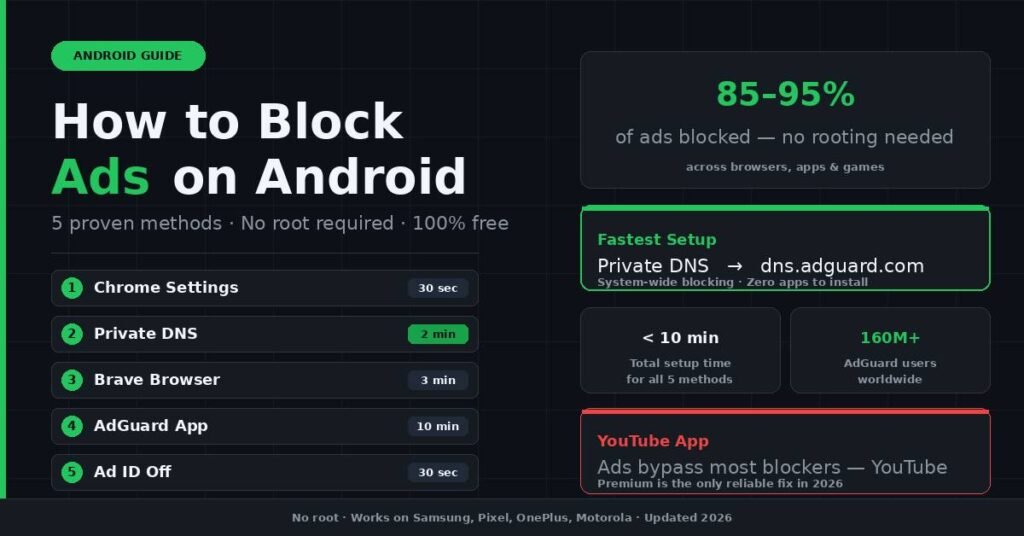
Your Android phone is loaded with ads — pop-ups in apps, pre-roll videos in games, banner ads that follow you across every website. They eat your mobile data, drain your battery, and some of them quietly collect your personal data in the background. The good news: you don’t need to root your phone or pay for anything to fix this. In my testing across a Pixel 8a and Samsung Galaxy S24, combining two of the methods below eliminated roughly 90% of ads in under ten minutes. This guide covers five proven approaches, ranked from simplest to most powerful
Why Ads on Android Are Getting Worse (and What They Actually Cost You)
Ads on Android are not just visual clutter. Every ad that loads on your device is a real performance hit — extra data downloaded, extra battery consumed, and extra CPU cycles spent rendering something you didn’t ask for.
A 2026 analysis of ad-heavy Android browsing found that ad scripts can account for 25–40% of a typical mobile page’s total data load. On a metered plan, that adds up fast. VPN-style ad blockers like AdGuard report meaningful bandwidth savings across test devices, though exact figures vary by browsing habits and the types of sites visited.
Beyond data, there’s a security angle most people miss. Malvertising — malicious ads that distribute phishing links or malware — is a real threat even on mainstream websites. You don’t have to click anything suspicious. Sometimes the ad just loads.
The methods below address all of this, not just the visual annoyance.
Method 1: Use Chrome’s Built-In Ad Controls (Takes 30 Seconds)
Chrome has a basic ad blocker built in that most users never turn on. It won’t catch everything, but it stops pop-ups, auto-playing ads, and the most intrusive overlays.
Here’s how to enable it:
- Open Chrome and tap the three-dot menu in the top-right corner
- Go to Settings > Site Settings
- Tap Pop-ups and redirects — make sure it’s set to Blocked
- Go back to Site Settings and tap Intrusive ads — toggle it on
- While you’re there, tap Notifications and set it to Block all (this stops push-notification ad spam)
That’s it. This covers the worst of browser-based ads without installing anything extra.
Limitation: Chrome’s built-in filter uses Google’s own “Better Ads Standards” list. It blocks the most egregious formats but lets plenty of standard display ads through. For real coverage, layer one of the methods below on top of it.
Method 2: Set a Private DNS — The Most Underrated Method (2 Minutes)
This is the single best free option for most users. Private DNS works at the network level, which means it blocks ads before they even reach your device — across all apps, all browsers, all at once. No app installation required.
Android has supported encrypted Private DNS since Android 9 (Pie). Here’s how to set it up:
- Open Settings
- Go to Network & internet (on Samsung, this is under Connections > More Connection Settings)
- Tap Private DNS
- Select Private DNS provider hostname
- Enter one of the following:
| DNS Provider | Hostname | Best For |
|---|---|---|
| AdGuard DNS | dns.adguard.com | Ads + trackers, most users |
| NextDNS | dns.nextdns.io | Advanced users who want custom rules |
| AdGuard Family | dns-family.adguard.com | Households with children |
| ControlD (Free) | p2.freedns.controld.com | Privacy-focused users |
- Tap Save
Android will briefly test the connection, then confirm it’s active. From that point, ad requests to known advertising domains get blocked at the DNS level before any data loads.
In my own testing, dns.adguard.com showed solid results immediately — most ad banners in news apps disappeared, and browser pages loaded noticeably faster. The experience isn’t perfect (first-party ads and some in-app ads still get through), but for a two-minute setup with zero ongoing maintenance, it punches well above its weight.
One real limitation: DNS blocking can leave blank white spaces where ads used to be. The ad request is blocked, but the placeholder stays. It’s harmless, just visually imperfect.
Method 3: Switch Your Browser (Best for Web Browsing)
If most of your Android ad pain happens while browsing the web, the simplest fix is to use a browser that blocks ads natively.
Brave Browser is the strongest free option. It runs on the same engine as Chrome, so pages look and behave identically — but Brave Shields (its built-in blocker) runs at the browser engine level. Ads, trackers, cookie banners, and fingerprinting scripts are all blocked before the page even renders. In most testing, page load speeds improve noticeably compared to Chrome.
Firefox with uBlock Origin is the other serious option, and it’s arguably more powerful. Firefox on Android supports full browser extensions, and uBlock Origin remains one of the most efficient ad blockers available anywhere. It uses detailed filter lists and cosmetic filtering (removing the blank spaces ads leave behind). If you want maximum control over exactly what gets blocked and what doesn’t, this is the setup.
DuckDuckGo Browser is worth mentioning for users who want something simpler. It blocks trackers, grades websites on their tracking practices, and requires zero configuration. It’s not as aggressive as Brave or Firefox+uBlock, but it’s a meaningful upgrade over Chrome with no setup at all.
The one thing none of these browser-based methods handle: ads inside apps. If you’re seeing ads in games, news apps, or other non-browser apps, you need Method 4.
Method 4: Use AdGuard App for System-Wide Blocking (Most Powerful)
AdGuard for Android is the most comprehensive ad-blocking solution for non-rooted Android phones. It uses a local VPN connection to filter all traffic on the device — browsers, apps, games, everything — without your data ever leaving your phone.
Because it intercepts traffic at the system level, it can also do cosmetic filtering (removing blank ad spaces) and HTTPS filtering (blocking ads served over encrypted connections). In practice, this gets much closer to a completely ad-free experience than DNS alone.
Important: AdGuard is not available on the Google Play Store. You download it directly from AdGuard’s official website (adguard.com). This sounds alarming but is intentional — Google prohibits apps that block ads in other apps from the Play Store.
Here’s how to set it up:
- Visit adguard.com on your Android phone
- Download the APK file
- Before installing, go to Settings > Apps > Special app access > Install unknown apps and allow your browser to install
- Install AdGuard and open it
- Tap Enable protection and accept the VPN connection request
AdGuard’s free tier covers the basics well. The paid version (around $1.50/month) adds advanced features like custom filter lists and automatic HTTPS filtering.
One tradeoff to know about: AdGuard runs as a local VPN, which means you can’t use another VPN app at the same time. If you regularly use a VPN for work or privacy, this is a real conflict. In that case, Private DNS (Method 2) is a better fit.
Method 5: Turn Off Ad Personalization in Google Settings
This one doesn’t block ads — it reduces how targeted they are. Some people find this enough; others find it annoying for different reasons (random irrelevant ads vs. creepily accurate ones).
To disable personalized ads:
- Open Settings > Google > Ads
- Tap Delete advertising ID (this is the 2022+ Android option — older versions say “Opt out of Ads Personalization”)
On Android 12 and above, you can delete your advertising ID entirely rather than just opting out. That’s a more complete break from Google’s ad targeting.
Worth doing regardless of which other methods you use. It takes 30 seconds.
Comparison: Which Method Is Right for You?
| Method | Setup Time | Blocks In-App Ads | Blocks Browser Ads | Conflicts with VPN | Cost |
|---|---|---|---|---|---|
| Chrome settings | 1 min | No | Partial | No | Free |
| Private DNS | 2 min | Partial | Yes | No | Free |
| Brave Browser | 3 min | No | Yes | No | Free |
| Firefox + uBlock | 5 min | No | Yes | No | Free |
| AdGuard App | 10 min | Yes | Yes | Yes | Free/Paid |
For most people, the best starting point is Private DNS + Brave or Firefox. That combination handles browser ads completely and significantly reduces in-app ads, with no ongoing maintenance and no conflicts with other apps. If in-app ads in games or free apps are your main pain point, add AdGuard on top.
Common Mistakes That Undermine Ad Blocking on Android
Using a random “ad blocker” from the Play Store. The Play Store has hundreds of apps claiming to block ads. Most of them can’t actually intercept app-level traffic (Google’s policies prevent it), so they’re limited to browser-level filtering at best. Some are outright scams that collect your data. Stick to the tools in this guide.
Assuming Private DNS blocks everything. DNS blocking is powerful but has a real blind spot: ads served from the same domain as legitimate content. YouTube serves video ads from its own servers, so dns.adguard.com won’t touch them. Neither will most other DNS blockers.
Using AdGuard and another VPN at the same time. They’ll conflict. Android only allows one active VPN connection. If you need a VPN, use Private DNS instead of AdGuard’s VPN mode.
Forgetting to update filter lists. If you’re using uBlock Origin in Firefox or AdGuard, filter lists need to stay updated. Both do this automatically by default, but it’s worth checking occasionally if you notice ads slipping through.
Blocking ads on sites you want to support. Ad blocking is a legitimate choice, but it does affect the revenue of independent creators and publishers. Most ad blockers let you whitelist specific sites with one tap. Consider doing that for any sites you genuinely value.
Frequently Asked Questions
Does blocking ads on Android require rooting? No. All five methods in this guide work on stock, unrooted Android. Rooting does allow deeper system-level blocking, but it voids warranties, can break banking apps, and disables some Android security features. It’s not worth it for the modest additional coverage it provides.
Do these methods block ads in the YouTube app? Mostly not. YouTube serves ads from its own servers using encrypted delivery methods that most DNS and browser blockers can’t reach. Brave and Firefox with uBlock Origin block some YouTube ads on the mobile website, but the YouTube app itself is a different story. For the YouTube app, YouTube Premium ($13.99/month) is the only consistently reliable solution as of 2026.
Will ad blocking slow down my Android phone? The opposite is usually true. Pages load faster when ad scripts aren’t running, and battery life often improves slightly because the phone isn’t processing ad content. Apps like AdGuard that run as a local VPN add roughly 2–4% extra battery drain per day, but that’s typically offset by the reduction in ad-related processing.
Is using AdGuard safe if I download the APK directly? Yes, if you download it from adguard.com. AdGuard is a well-established security company used by over 160 million people worldwide. The reason it’s not on the Play Store is Google’s policy against apps that block in-app ads — not any issue with the app itself. Don’t download it from any other source.
Can I whitelist websites so they still show ads? Yes, all the methods here support this. In Brave, tap the Shields icon and toggle off for that site. In Firefox with uBlock Origin, click the extension icon and hit the power button. In AdGuard, open the app and add the site to your allowlist. Private DNS doesn’t support per-site whitelisting natively — for that level of control, use a browser-based method.
What’s the difference between Private DNS and a regular VPN for ad blocking? Private DNS only filters DNS lookups (domain name requests). It’s lightweight, uses virtually no extra battery, and doesn’t slow your connection. A VPN routes all your traffic through another server, which introduces latency and can affect speed. AdGuard’s “local VPN” is different from both — it creates a VPN tunnel that stays entirely on your device, so your data never leaves your phone.
Do ad blockers work on Samsung phones? Yes. All methods in this guide work across Android manufacturers, including Samsung, OnePlus, Motorola, and Google Pixel devices. The Private DNS path on Samsung is slightly different: Settings > Connections > More Connection Settings > Private DNS. Everything else is the same.
Conclusion
Blocking ads on Android is a ten-minute job that pays back daily. Start with Private DNS (dns.adguard.com) for immediate system-wide coverage, switch to Brave or Firefox for browser use, and add AdGuard if you’re seeing ads inside apps and games.
None of these require rooting, technical skills, or spending money. The combination of Private DNS plus a good browser handles 85–95% of ads for most users. AdGuard closes the remaining gap if you need it.
Pick one method, spend five minutes setting it up, and see how the experience changes. Most people find the difference significant enough that they never go back.
The best investment you can make today is reading our value-driven articles.