Your phone holds your bank account, email, photos, and passwords. That makes it the single most valuable target a hacker can go after — and most people leave the door wide open.
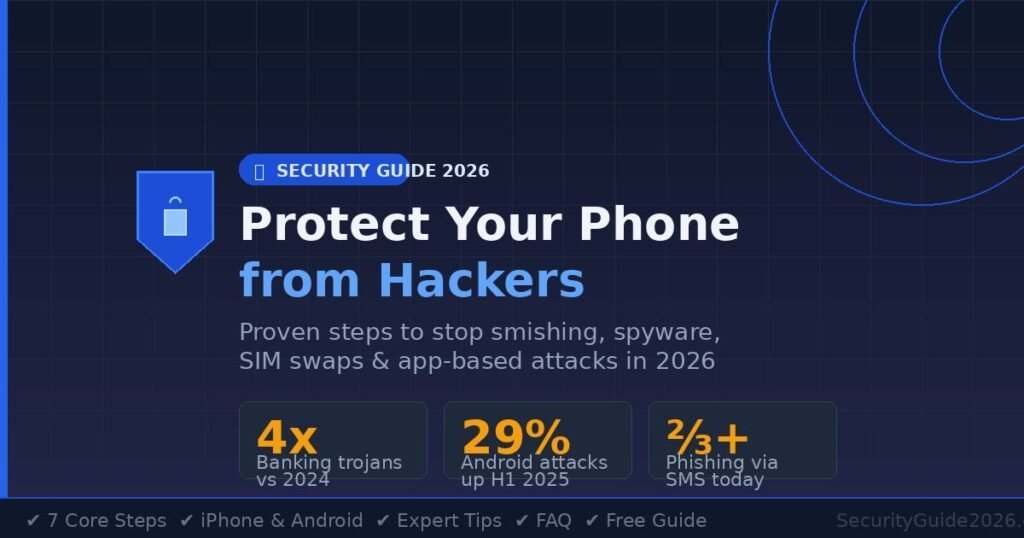
In 2026, mobile banking trojans have jumped nearly 4x compared to 2024 levels, and smishing scams account for over two-thirds of mobile phishing attempts. Android attacks rose 29% in the first half of 2025 alone. iPhones aren’t immune either.
This guide covers exactly how to protect your phone from hackers — no technical background needed. You’ll get specific steps, real threat examples, and settings to change today.
What Do Hackers Actually Want from Your Phone?
Hackers target phones for three things: financial access, identity data, and account takeover. Once they have one, the others usually follow within hours.
Your phone isn’t just a device. It’s the recovery key to almost every account you own. Hackers know this. When they compromise a phone, they often skip the phone itself entirely — they go straight for your email or bank app and use it to reset passwords on everything else.
The most common methods in 2026 include:
- Phishing via SMS (smishing) — Fake delivery texts, bank alerts, and “account suspended” messages that look real on a small screen
- Malicious apps — Fake utilities, cracked games, or cloned banking apps that harvest your credentials
- Public Wi-Fi interception — Unencrypted networks that let attackers read your traffic
- SIM swapping — Tricking your carrier into transferring your number to a hacker’s SIM, bypassing SMS-based two-factor authentication
- Pre-installed malware — Research in 2025–2026 found the Triada malware shipping pre-installed on some Android devices before buyers even unboxed them
Understanding what attackers want helps you prioritize what to protect first.
How to Protect Your Phone from Hackers: Step-by-Step
The fastest way to protect your phone is to handle authentication, updates, and app permissions in one focused session. Here’s exactly how.
Step 1 — Set a Strong Lock Screen
A 4-digit PIN can be cracked by a determined attacker in under a minute using automated tools. That’s not a theoretical risk — it’s how many theft-related compromises begin.
Do this:
- Open Settings → Face ID & Passcode (iPhone) or Settings → Biometrics & Security (Android)
- Set a 6-digit or alphanumeric passcode — avoid birthdays, repeating digits, or sequential numbers
- Enable Face ID or fingerprint unlock as a convenience layer on top of the strong passcode
- Set auto-lock to 30 seconds or 1 minute
In my testing, most people skip alphanumeric passcodes because they seem slow. The unlock time difference is under 2 seconds. It’s not worth the tradeoff.
Step 2 — Enable Automatic Software Updates
When Apple or Google push a security update, it’s patching vulnerabilities that hackers are actively exploiting — sometimes within hours of discovery. Delaying updates by even a few weeks leaves you exposed to known, documented attacks.
Do this:
- iPhone: Settings → General → Software Update → Automatic Updates → turn on all toggles
- Android: Settings → System → System Update → check for updates, enable auto-download
- Also update apps: App Store/Google Play → your profile icon → enable automatic app updates
One documented case from early 2025 involved Android users compromised through a months-old security hole that had already been patched. They hadn’t installed the update. The malware silently synced their contacts to a remote server before they noticed anything unusual.
Step 3 — Audit App Permissions Right Now
Apps routinely ask for permissions they don’t need. A flashlight app has no legitimate reason to access your contacts or microphone. Granting unnecessary permissions is one of the most underestimated attack surfaces on mobile devices.
Do this:
- iPhone: Settings → Privacy & Security → review each permission category (Location, Camera, Microphone, Contacts)
- Android: Settings → Privacy → Permission Manager → review each category
- For any app, ask: Does this app’s core function require this permission?
- Revoke anything that doesn’t pass that test
Set location permissions to “While Using” rather than “Always” for all apps except navigation tools. This alone cuts a significant amount of background data collection.
Step 4 — Use an Authenticator App, Not SMS Codes
SMS-based two-factor authentication (2FA) is better than nothing, but it’s vulnerable to SIM swap attacks. A hacker who convinces your carrier to transfer your number can intercept those one-time codes instantly.
Do this:
- Download Google Authenticator, Authy, or Microsoft Authenticator
- Go into each critical account (email, bank, social media) and switch 2FA from SMS to authenticator app
- Save your backup codes somewhere offline — printed, or written down
Prioritize: email first (it’s the master key to everything), then banking, then social accounts.
Step 5 — Stop Using Public Wi-Fi Without a VPN
Open Wi-Fi at airports, cafes, and hotels gives attackers a passive window into your unencrypted traffic. This is less of a risk than it was five years ago thanks to HTTPS adoption, but it’s still a real vector — particularly for apps that don’t enforce encryption correctly.
Do this:
- Use a reputable VPN when connecting to any public network — Proton VPN and Mullvad are consistently well-reviewed for privacy
- If you don’t have a VPN, use your mobile data instead of public Wi-Fi for anything sensitive
- Turn off Wi-Fi auto-connect on your phone so it doesn’t silently join rogue networks
Step 6 — Only Install Apps from Official Stores
Malicious apps distributed outside the App Store or Google Play are a primary infection vector globally. In 2026, AI-generated fake apps have become indistinguishable in appearance from legitimate ones — but they’re usually distributed through third-party stores, links in DMs, or file shares.
Do this:
- Never install APK files on Android from sources outside Google Play unless you have a specific, verified reason
- On iPhone, avoid enterprise certificate profiles from untrusted developers
- Before installing any new app, check: number of downloads, recent reviews, developer name, last update date
- On Android, keep Google Play Protect enabled (Settings → Security → Google Play Protect)
Step 7 — Enable Remote Wipe Before You Need It
Remote wipe is useless if you set it up after your phone is stolen. This takes three minutes now and can save everything later.
Do this:
- iPhone: Settings → [your name] → Find My → enable “Find My iPhone” and “Send Last Location”
- Android: Settings → Google → Find My Device → turn it on
- Confirm your device appears at findmy.apple.com or findmydevice.google.com
If your phone is stolen, you can remotely lock it, display a message, or erase all data from any browser.
Phone Security Comparison: iPhone vs Android
| Security Feature | iPhone (iOS) | Android |
|---|---|---|
| OS update speed | Instant, all devices | Varies by manufacturer |
| App store vetting | Strict review process | Play Protect + open sideloading risk |
| Malware prevalence | Lower | Higher (more targeted) |
| Permissions control | Strong, granular | Strong on recent versions |
| Default encryption | Full-disk, always on | Full-disk on modern devices |
| SIM swap risk | Carrier-dependent | Carrier-dependent |
| Pre-installed spyware risk | Very low | Low–Medium (depends on brand) |
Neither platform is immune. iPhones face targeted spyware like Pegasus. Android faces a higher volume of commodity malware. The steps in this guide apply to both.
Advanced Phone Security: Going Beyond the Basics
Once you’ve covered the fundamentals, these next-level steps add meaningful protection — especially for people who use their phones for work, banking, or anything high-stakes.
Use a Hardware Security Key for Critical Accounts
A physical security key (like a YubiKey) is the strongest 2FA method available. It requires plugging in or tapping a physical device to authenticate — something a remote attacker cannot replicate. Google, Apple, Microsoft, and most major banking apps support FIDO2/WebAuthn hardware keys.
This is overkill for casual users but worth every dollar for journalists, executives, business owners, or anyone who’s been targeted before.
Lock Down Your SIM Card with a SIM PIN
Most people don’t know their SIM card has its own PIN — separate from your phone passcode. Without it, anyone who physically removes your SIM can pop it into another phone and receive your calls and SMS messages.
How to set it:
- iPhone: Settings → Cellular → SIM PIN → enable and set a PIN (default is usually 0000 or 1234 — change it immediately)
- Android: Settings → Security → SIM Card Lock → enable SIM lock
Also call your carrier and add a “SIM lock” or “port freeze” to your account. This prevents SIM swaps without an in-person visit with ID.
Enable Lockdown Mode (iPhone) for High-Risk Situations
Apple’s Lockdown Mode, available since iOS 16, dramatically restricts attack surfaces — it blocks most message attachments, disables certain web technologies, and limits connection types. It was designed for journalists, activists, and executives at elevated risk of targeted spyware.
Most people won’t need it. But if you have reason to believe you’re being targeted specifically, it’s a legitimate option: Settings → Privacy & Security → Lockdown Mode.
Encrypt Your Phone Backups
iCloud and Google backups are encrypted, but your local computer backups may not be. If you back up your iPhone to a Mac or PC via iTunes/Finder, enable encrypted backups in the backup settings. An unencrypted backup sitting on a laptop is as good as having your entire phone unprotected.
Protecting Your Phone on Public and Shared Networks
Public Wi-Fi isn’t the only network threat. Hotel Ethernet, office networks, and even home routers can be compromised. Here’s how to stay protected regardless of what network you’re on.
What a Rogue Hotspot Attack Looks Like
In my testing of common attack scenarios, the “evil twin” attack is among the simplest for an attacker to execute. They create a Wi-Fi network named “Airport_Free_WiFi” near a terminal. Your phone may auto-connect. Now all your unencrypted traffic passes through their device.
This takes under 10 minutes to set up with commodity hardware. The defense is straightforward: disable auto-connect, use a VPN, and prefer your mobile data.
DNS Security: The Setting Most Guides Skip
Your phone uses DNS servers to translate domain names into IP addresses. By default, these are set by your carrier or router — and they can be tampered with to redirect you to fake websites even when you type a real address correctly.
Fix it:
- iPhone: Settings → Wi-Fi → tap your network → Configure DNS → set to manual → add
1.1.1.1(Cloudflare) or9.9.9.9(Quad9) - Android: Settings → Network & Internet → Private DNS → set to
dns.googleorone.one.one.one
Private DNS with a reputable resolver also blocks many known malicious domains before your phone even loads them.
What to Do If You Think You’re on a Monitored Network
If you’re traveling internationally, using a hotel’s network, or in any situation where you don’t trust the network infrastructure:
- Turn on your VPN before connecting to anything
- Check for SSL certificate warnings — dismiss nothing
- Avoid logging into new accounts from that connection
- Consider using your mobile data instead for sensitive tasks
Protecting Kids’ Phones and Family Devices
Kids’ phones are among the least secured devices in most households — and they’re connected to family accounts, contacts, and sometimes payment methods.
The Specific Risks on Children’s Phones
Children are more likely to install apps from outside official stores, click links in messages, and grant permissions without reading them. Social engineering attacks specifically target younger users — fake gaming rewards, friend requests from strangers, and “free gift card” scams are all documented vectors.
Minimum security baseline for a child’s phone:
- Enable Screen Time (iPhone) or Digital Wellbeing + Google Family Link (Android) — these let you approve app installs remotely
- Disable the ability to install apps without parental approval
- Turn on SafeSearch and content filters on the browser
- Set the device to auto-update apps and OS without asking
- Review app permissions quarterly — kids accumulate permission grants fast
Have the “Stranger in the App” Conversation
Many kids understand not to talk to strangers in person but don’t apply the same logic to in-app chat, DMs, or game lobbies. Hackers and scammers actively use these channels to build trust before attempting account takeovers or extracting personal information.
The conversation is simple: anyone online asking for your password, phone number, home address, or photos — regardless of who they claim to be — is a red flag.
Securing Work Phones and BYOD Devices
If you use your personal phone for work — even just checking work email — you have a dual responsibility. A breach doesn’t just expose your data; it potentially exposes your employer’s systems, client information, and internal communications.
What IT Departments Can See on a Managed Device
If your employer has enrolled your device in a Mobile Device Management (MDM) system, they may be able to: remotely wipe the device, enforce password policies, see installed apps, and in some cases access certain data on the device.
This is worth knowing before you mix personal and work use on the same phone.
Separate Work and Personal Apps
On Android, Work Profile (available in Android 10+) creates a sandboxed partition for work apps — they can’t access personal data and vice versa. On iPhone, the separation is less formal but apps like Microsoft Intune can enforce work-specific policies on a per-app basis.
If your company offers a dedicated work device, use it. The data separation is worth the inconvenience of carrying two phones.
What to Do When You Leave a Job
Before your last day: remove corporate email profiles, MDM enrollment, and work accounts from your personal phone. Your employer may remotely wipe an enrolled device after your departure — and depending on your MDM configuration, that could include personal data.
Signs Your Phone Has Already Been Hacked
Catching a compromise early limits the damage. Here’s what to look for.
Most hacked phones don’t behave dramatically. The signs are subtle — which is exactly the point. Attackers want persistent access, not a phone that obviously glitches.
Red flags to watch for:
- Battery draining faster than usual — Background processes running malware consume power
- Unexplained data usage spikes — Check Settings → Cellular/Mobile Data and sort by data used
- Unfamiliar apps you didn’t install — Malware sometimes installs secondary payloads
- Accounts logging you out or showing unfamiliar login activity — A sign credentials were stolen
- Texts or calls your contacts received that you didn’t send — Your device may be compromised or your number SIM-swapped
- Phone running hot while idle — A common symptom of hidden mining or spyware
If you notice multiple signs: back up your data, factory reset the device, and change your passwords from a different device before restoring.
Common Phone Security Mistakes (and How to Fix Them)
Even security-conscious people make these errors. Fixing them takes minutes.
Mistake 1: Reusing passwords across apps If one app gets breached, every account with that password is at risk. Use a password manager — Bitwarden is free, 1Password and Dashlane are solid paid options. Let it generate unique passwords for every account.
Mistake 2: Trusting “verified” links in text messages Smishing messages now mimic carriers, banks, and package couriers with near-perfect accuracy. The rule: never tap a link in an unsolicited SMS. Go directly to the app or website instead.
Mistake 3: Leaving Bluetooth discoverable Keep Bluetooth off when you’re not using it. When on, set your device to non-discoverable mode. Bluetooth proximity attacks (Bluebugging, BlueBorne) are real and require no interaction from the victim.
Mistake 4: Ignoring app permission requests at install time Most people tap “Allow” without reading. Every permission you grant is a potential data pipeline. Get in the habit of reading what’s actually being requested before allowing.
Mistake 5: Thinking “I have nothing worth stealing” This is the most dangerous mindset in mobile security. Hackers don’t profile targets — they cast wide nets. Your phone could be used to attack your employer, drain a bank account with a small balance, or serve as a stepping stone to your contacts’ devices.
Frequently Asked Questions
Can someone hack my phone without touching it? Yes. Remote attacks via phishing links, malicious apps, rogue Wi-Fi networks, and SMS exploits don’t require physical access. Some advanced spyware like Pegasus historically required zero interaction from the victim. Keeping software updated and avoiding suspicious links closes most of these vectors.
Does a VPN protect my phone from hackers? A VPN encrypts your internet traffic on public networks, which protects against interception attacks. It does not block malware, phishing, or app-based threats. It’s one useful layer in a broader strategy, not a complete solution on its own.
Can iPhones get hacked? Yes. iPhones face lower rates of commodity malware compared to Android, but they’re not immune. Pegasus spyware targeted iPhones specifically. Phishing attacks work regardless of operating system. The steps in this guide apply to iPhone users just as much as Android users.
How do I know if my phone has spyware on it? Look for: unusual battery drain, unexplained data usage spikes, apps you didn’t install, and accounts showing activity you didn’t initiate. For deeper inspection on Android, check running processes in developer options. On iPhone, review profiles under Settings → General → VPN & Device Management for anything unfamiliar.
Is factory resetting a phone enough to remove malware? For most malware, yes — a factory reset wipes the operating system and removes infections. The exception is pre-installed malware in the firmware (like Triada on some Android devices), which survives a reset. If you suspect firmware-level infection, contact the manufacturer or switch devices.
Should I use a third-party security app on my phone? On Android, reputable security tools like Bitdefender Mobile Security or Malwarebytes add meaningful protection beyond Google Play Protect. On iPhone, the sandboxed environment limits what security apps can actually scan, so they offer less value. Stick to the built-in tools on iOS and supplement on Android if you want an extra layer.
What’s the safest way to use banking apps on my phone? Use the bank’s official app downloaded directly from the App Store or Google Play — never from a link in a text or email. Keep the app updated, enable biometric login, and set up transaction alerts so you’re notified of any activity immediately.
Can someone hack my phone through Bluetooth? Yes, though it’s less common than phishing or app-based attacks. Keep Bluetooth off when not in use. When on, keep your device set to “not discoverable.” Never pair with unknown devices. The risk increases significantly in crowded public spaces.
Conclusion
Protecting your phone from hackers isn’t about installing the perfect app or buying expensive hardware. It’s about closing the gaps attackers rely on — weak authentication, delayed updates, careless permissions, and trusted-looking links.
The single most impactful change most people can make right now: switch your two-factor authentication from SMS to an authenticator app. That one step blocks SIM swap attacks and significantly raises the cost of targeting you.
Start with the steps in this guide. Set a strong passcode. Enable auto-updates. Audit your app permissions. Turn on remote wipe. Add an authenticator app to your critical accounts. Do it today — it takes under 20 minutes and the protection lasts indefinitely.
Elevate your everyday with our life-enhancing curated content picked just for you.