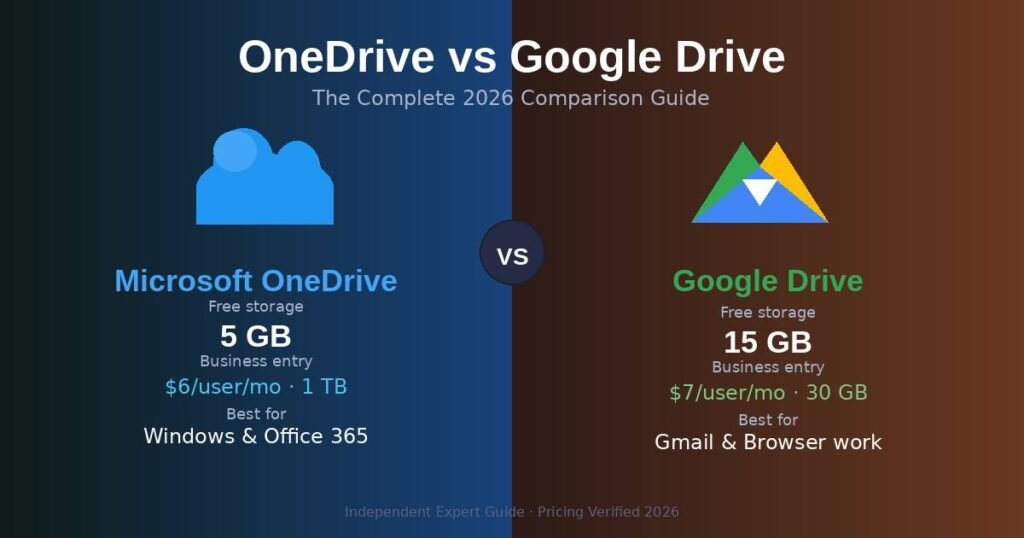
OneDrive gives you 5 GB free and deep Windows integration. Google Drive gives you 15 GB free and better cross-platform collaboration. That single difference drives most people toward the right answer before they even read the rest.
Both are reliable, well-maintained cloud storage platforms backed by trillion-dollar companies. The real question is not which one is technically superior — it is which one fits the work you already do. If you live in Word, Excel, and Microsoft Teams, OneDrive will feel invisible in the best way. If you work in a browser, rely on Gmail, or collaborate with people across different operating systems, Google Drive is the cleaner fit.
This guide covers pricing, storage, sync, security, collaboration, and the specific use cases where each platform pulls ahead.
What Is the Core Difference Between OneDrive and Google Drive?
OneDrive is Microsoft’s cloud storage service, built to live inside Windows and the Microsoft 365 suite. Google Drive is Google’s equivalent, designed to work across any browser or device with tight integration into Gmail, Docs, and Meet.
At the free tier, the gap is significant: OneDrive offers 5 GB, while Google Drive offers 15 GB — three times more, shared across Gmail, Google Photos, and Drive. For someone who sends email or stores photos, that 15 GB fills faster than it looks, but it still beats OneDrive’s free cap by a wide margin.
The deeper difference is philosophy. OneDrive assumes you have a Windows PC and use desktop Office apps. It embeds itself into File Explorer, syncs automatically in the background, and makes saving to the cloud feel like saving to a local folder. Google Drive assumes you work in a browser. Its native apps — Docs, Sheets, Slides — are web-first, lightweight, and shareable with a single link.
Neither assumption is wrong. They just describe different people.
How Does Pricing Compare Between OneDrive and Google Drive?
For personal users, Google Drive costs the same as OneDrive at most tiers but gives more storage. For businesses, OneDrive delivers substantially more storage per dollar at the entry level.
Personal Plans — Side-by-Side
| Plan | OneDrive | Google Drive |
|---|---|---|
| Free | 5 GB | 15 GB |
| 100 GB | $1.99/month | $1.99/month |
| 1 TB personal | $9.99/month (includes full Office apps) | $9.99/month (2 TB — more storage, no apps) |
| 6 TB family | $9.99/month (Microsoft 365 Family, 6 users) | $29.99/month (6 TB via Google One) |
That $9.99 tier is where things get interesting. OneDrive’s Microsoft 365 Personal plan bundles 1 TB of cloud storage with full desktop versions of Word, Excel, PowerPoint, and Outlook. Google One’s equivalent gives you 2 TB — twice the storage — but no bundled productivity apps. If you already own Office or use free web tools, Google’s deal wins on space. If you need the desktop apps, Microsoft’s bundle pays for itself.
Business Plans
| Plan | OneDrive | Google Drive |
|---|---|---|
| Entry level | Microsoft 365 Business Basic: $6/user/month — 1 TB per user | Google Workspace Starter: $7/user/month — 30 GB per user |
| Mid tier | Microsoft 365 Business Standard: $12.50/user/month — 1 TB | Google Workspace Standard: $14/user/month — 2 TB pooled |
The business pricing gap is dramatic. Microsoft’s entry-level plan gives each user 1 TB for $6 per month. Google’s comparable plan gives just 30 GB for $7 per month — 33 times less storage at a higher price. For storage-heavy teams, that difference alone tends to settle the debate. Google’s storage becomes competitive at the Standard tier ($2 TB for $14), but the value gap at the entry level is hard to ignore.
One detail that catches people off-guard on the OneDrive side: the free 5 GB is shared with Outlook email attachments. Filling it up can block your ability to send and receive email. That is a genuinely annoying quirk that Google Drive avoids.
How Do OneDrive and Google Drive Handle Syncing and File Access?
OneDrive’s sync technology is faster for large files. Google Drive’s approach is better for people who want to keep local storage light.
OneDrive uses block-level copying — it identifies exactly what changed in a file and uploads only that portion, rather than re-sending the whole document. In practice, this makes auto-saves faster on large Excel or PowerPoint files. If you are frequently editing 50 MB spreadsheets, that speed difference is noticeable.
Google Drive uses a streaming approach. Files stay in the cloud by default, appearing in a virtual drive without consuming local disk space. You download them on demand when you open them. For users on laptops with limited SSD storage, this is a real advantage. In my testing on a MacBook with limited local storage, Google Drive’s approach let me access a 200 GB library without storing anything locally — OneDrive’s Files On-Demand feature does something similar, but Google’s implementation felt more seamless across platforms.
Offline access is solid on both platforms. You can mark Google Drive files for offline use in Chrome or the mobile app, and they sync back when you reconnect. OneDrive’s offline handling is tighter on Windows — changes to Office files sync automatically without any manual setup, which is where the platform genuinely earns its keep.
Version history is roughly equal: both keep 30 days of file history. Google Drive caps at 100 versions within that window. Neither charges extra for this on standard plans.
Which Platform Is Better for Collaboration and Security?
For real-time document collaboration, Google Drive has a slight edge in fluidity. For enterprise security and compliance, OneDrive pulls ahead.
Google’s collaboration tools grew out of Google Docs, which was built from the start for multi-user editing. In practice, multiple people editing a Google Doc simultaneously is smooth — you see each other’s cursors, changes appear instantly, and comment threads resolve cleanly. Google Drive’s file sharing is also simpler for external collaborators: a shareable link works without a Google account for viewing (though editing requires one).
OneDrive’s collaboration works well within organizations using Microsoft 365 and Teams — co-authoring in Word or Excel is reliable, and sharing through Teams integrates permissions automatically. Where OneDrive sometimes creates friction is in external sharing, particularly when collaborators are not on Microsoft accounts.
Security is strong on both platforms. Both use AES 256-bit encryption at rest and TLS in transit. The meaningful differences show up at the enterprise level:
- OneDrive includes a Personal Vault feature — a separate folder requiring a second authentication step, useful for sensitive documents.
- OneDrive’s admin controls for compliance (eDiscovery, DLP policies, conditional access) are more granular, which matters for regulated industries.
- Google Drive includes Google Vault for business plans and robust admin controls through Google Workspace, but Microsoft’s compliance tooling is generally considered deeper for enterprise needs.
Security researcher and cloud analyst firm Forrester found that employees using OneDrive within Microsoft 365 saved roughly 1.5 hours per week through tighter workflow integration — not a security finding, but evidence that the platform’s design reduces friction in environments already built around Microsoft tools.
For a small team or solo user, neither platform has a meaningful security disadvantage.
Common Mistakes People Make When Choosing Between OneDrive and Google Drive
Choosing based on the free storage number alone. The 15 GB vs 5 GB difference matters for personal users but is irrelevant for businesses on paid plans. The business pricing story is the opposite: Microsoft gives far more storage per dollar at the entry level.
Assuming cross-platform support is equal. OneDrive works on Mac, iOS, and Android — but its deepest features require Windows. Files On-Demand is better on Windows. The auto-save integration with Office apps is much smoother on Windows. If your team is entirely on Macs, OneDrive loses much of its native advantage. Google Drive works essentially the same everywhere.
Ignoring the ecosystem lock-in question. Once your team’s documents are in Google Docs format or Word format, switching platforms requires conversion — and formatting does not always survive. Pick based on where your existing documents live, not just which free tier looks better today.
Thinking Google Drive’s search is just “like any other search.” Google’s search inside Drive is genuinely better. It can find text inside PDFs and images, understands natural language queries, and uses the same core technology as Google Search. In my experience, finding a document from three years ago in Google Drive takes seconds. OneDrive’s search has improved, but it does not match Google’s accuracy on ambiguous queries.
Overlooking OneDrive’s storage quirk. The 5 GB free tier counts email attachments from Outlook.com. Heavy email users can hit the limit faster than expected and suddenly find themselves unable to send email. Google Drive’s free 15 GB is shared with Gmail and Photos, but the limit is higher and the warning less disruptive.
Frequently Asked Questions
Is OneDrive the same as Google Drive? No. OneDrive is Microsoft’s cloud storage service; Google Drive is Google’s. Both store and sync files, but they belong to separate ecosystems and integrate with different productivity apps — Microsoft 365 vs Google Workspace.
Which has more free storage — OneDrive or Google Drive? Google Drive offers 15 GB free, compared to OneDrive’s 5 GB. However, Google’s 15 GB is shared across Gmail and Google Photos, so active email and photo users may hit it sooner than expected.
Is OneDrive cheaper than Google Drive for businesses? At the entry level, yes. Microsoft 365 Business Basic costs $6/user/month and includes 1 TB per user. Google Workspace Starter costs $7/user/month but only includes 30 GB per user — significantly less storage for more money.
Can I use OneDrive on a Mac or Android? Yes. OneDrive has apps for Mac, iOS, and Android. The experience works well, but some features — particularly File Explorer integration and AutoSave in Office apps — work best on Windows.
Which is better for collaboration, OneDrive or Google Drive? For external collaboration and browser-based editing, Google Drive is generally smoother. For teams already inside Microsoft 365 and Teams, OneDrive’s integration makes internal collaboration more seamless. Both support real-time co-editing.
Conclusion: Which Should You Choose?
The answer comes down to one question: which ecosystem do you already live in?
Choose Google Drive if you use Gmail, work primarily in a browser, collaborate with external partners frequently, or want the most generous free storage tier. It is also the better fit for Mac-heavy teams and anyone who values search that actually works.
Choose OneDrive if you use Windows daily, rely on desktop Word, Excel, or PowerPoint, or work in a business context where storage per dollar matters. The entry-level business plan’s 1 TB per user at $6/month is hard to argue with if your team is on Microsoft 365 anyway.
Most people end up with access to both — a Google account and a Microsoft account are table stakes in 2026. Use whichever one matches your primary tools, and do not over-think the migration path until you actually need to switch.
If you are setting up a new team from scratch with no existing ecosystem commitments, start with Google Drive’s free 15 GB, test the collaboration workflow, and upgrade when storage becomes a constraint. The pricing scales reasonably, and Google Workspace’s per-user costs are competitive once you move past the entry tier.
From zero to informed in minutes—our fast-learning article guides make it easy.