Google Drive gives you 15 GB of free cloud storage and lets you access your files from any device, anywhere. If you’ve ever lost a file, emailed yourself documents, or struggled to collaborate on a project, Google Drive solves all three problems — without paying a cent.
This guide walks you through everything beginners need: setting up your account, uploading and organizing files, sharing with others, and avoiding the most common mistakes. Whether you’re a student, remote worker, or someone who just wants their files backed up safely, you’ll have Google Drive running smoothly within the hour.
What Is Google Drive and Why Do Millions Use It?
Google Drive is a free cloud storage service built into every Google account. It lets you store, edit, and share files — documents, photos, videos, spreadsheets — from any browser or device without installing software.
The real power isn’t just storage. Drive integrates with Gmail, Google Docs, Google Sheets, Google Slides, and Google Meet in a single ecosystem. In my experience testing cloud platforms over the years, that integration is what separates Drive from competitors. You can open an email attachment directly in Google Docs, edit it, and share it back — without downloading a single file.
Here’s what makes Google Drive stand out in 2025:
- 3 billion+ active users use Google Workspace globally (Google, 2024)
- 15 GB of free storage shared across Gmail, Google Drive, and Google Photos
- Files are accessible from any browser — no app installation required
- Built-in collaboration lets multiple people edit the same document simultaneously
- Automatic version history means you can restore any previous version of a file
The platform essentially replaced the old workflow of saving files to a hard drive, attaching them to emails, and losing track of which version is current. With Drive, everyone always works on the same file — live.
How to Set Up Google Drive in Under 5 Minutes
Setting up Google Drive takes less than five minutes. The process is identical whether you’re on Windows, Mac, Chromebook, iPhone, or Android.
Step 1: Create or sign into your Google account
Go to drive.google.com in any browser. If you already have Gmail, you’re already set up — sign in with your Gmail credentials. If you don’t have a Google account, click “Create account” and follow the prompts. The entire sign-up takes about two minutes.
Step 2: Learn the three main areas of the dashboard
Once you’re logged in, the left sidebar shows everything you need:
- My Drive — Your personal storage space. Every file and folder you upload lives here.
- Shared with me — Files and folders that other people have shared with your account.
- Recent — The last files you opened, sorted by time. Useful for picking up where you left off.
Also note Starred (your bookmarked files) and Trash (deleted files stay here for 30 days before permanent deletion).
Step 3: Install the desktop app (recommended for most users)
Google offers a desktop client called Google Drive for Desktop for Windows and Mac. Download it at google.com/drive/download. Once installed, a Google Drive folder appears on your computer. Drop any file into it and it syncs to the cloud automatically — and stays accessible from any other device.
I found this the most natural way to use Drive daily. It behaves exactly like a regular folder, except every file inside it is always backed up.
Step 4: Install the mobile app
Search “Google Drive” in the App Store (iOS) or Google Play (Android). The mobile app lets you upload photos directly, access files offline, and view shared documents on the go. I regularly use it to review documents while traveling without needing a laptop.
Step 5: Adjust your settings
Click the gear icon in the top right corner of Drive’s web interface. Two settings worth enabling right away:
- Convert uploads: Automatically converts uploaded .docx and .xlsx files to Google Docs/Sheets format, making them editable without Microsoft Office
- Offline access: Lets you view and edit Google Docs files without an internet connection (changes sync when you reconnect)
How to Upload, Organize, and Share Files in Google Drive
This is the core of how to use Google Drive for beginners — and where small habits separate organized users from frustrated ones.
Uploading files to Google Drive
There are three reliable methods:
- Drag and drop — Open drive.google.com in a browser window, drag any file from your computer, and drop it directly onto the page. It uploads immediately.
- The + New button — Click + New in the top-left corner and select “File upload” for individual files or “Folder upload” to upload an entire folder from your computer.
- Desktop sync — If you installed Google Drive for Desktop, drag files into the Google Drive folder on your computer. They sync without opening a browser.
Google Drive accepts virtually every common file type: PDFs, Word documents (.docx), Excel files (.xlsx), images (JPG, PNG, GIF, HEIC), videos (MP4, MOV, AVI), audio files (MP3, WAV), and ZIP archives. Files are stored without compression — what you upload is exactly what you download.
Creating folders and staying organized
An unorganized Drive becomes impossible to navigate within a few months. The best time to build folder structure is your first week.
To create a folder:
- Click + New → New Folder
- Name it specifically — “2025 Tax Documents” is better than “Taxes,” and “Client A — Website Copy” is better than “Work”
- Drag existing files into it, or open the folder first and upload directly into it
A folder structure that works for most beginners:
My Drive/
├── Work/
│   ├── [Project Name]/
│   └── Templates/
├── Personal/
│   ├── Finance/
│   ├── Travel/
│   └── Home/
└── Archive/
    └── [Year]/
Right-click any folder and select “Add shortcut to Drive” to pin a deeply nested folder to your main screen without moving it.
Sharing files and folders
Sharing is where Google Drive genuinely surpasses traditional file storage. You can share a single file or an entire folder, with precise control over what the recipient can do.
To share a file:
- Right-click the file → click Share (or click the file once and press the Share button in the top-right toolbar)
- Type the recipient’s email address in the search box
- Set their permission level:
- Viewer — Read-only access
- Commenter — Can add comments and suggestions but cannot change content
- Editor — Full editing rights
You can also click “Change to anyone with the link” to generate a shareable URL. Anyone who has the link can access the file — no Google account required. This is useful for sharing public documents, but always double-check the permission level before sending a public link.
One tip I give every beginner: When sharing documents for review, choose “Commenter” rather than “Editor.” Giving editor access to reviewers often results in accidental deletions or formatting changes. Comments can be accepted or rejected intentionally; edits cannot be easily traced.
Using Google Docs, Sheets, and Slides
Google Drive includes a full suite of office apps at no cost:
- Google Docs — Full-featured word processor (comparable to Microsoft Word)
- Google Sheets — Spreadsheet application (comparable to Excel)
- Google Slides — Presentation tool (comparable to PowerPoint)
- Google Forms — Survey and form builder with automatic data collection to Sheets
To create a new file, click + New and select the app. Documents save automatically — every change is stored the moment you type it. No “Save” button. No lost work from crashes.
If someone sends you a .docx or .xlsx file, open it directly in Drive and edit it. Download it back as the original format when done. I use this constantly when collaborating with people who work in Microsoft Office — no format conversion headaches.
Google Drive vs Other Cloud Storage: Which Is Best for Beginners?
Before committing, it helps to know how Google Drive compares to the other major options.
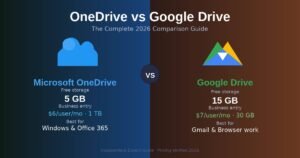
| Feature | Google Drive | Dropbox | OneDrive | iCloud |
|---|---|---|---|---|
| Free Storage | 15 GB | 2 GB | 5 GB | 5 GB |
| Built-in Editing Apps | Yes (Docs, Sheets, Slides) | No | Yes (Office Online) | Notes only |
| Real-Time Collaboration | Excellent | Good | Good | Limited |
| Works in Browser (No Install) | Yes, fully | Partial | Yes | No |
| Paid Plan (1 TB) | ~$10/month | ~$20/month | ~$10/month | ~$10/month |
| Best For | Students, remote teams, general users | Teams with heavy file sync needs | Microsoft 365 subscribers | Apple ecosystem users |
| Offline Access | Yes (with setup) | Yes | Yes | Yes (Apple devices) |
After testing all four platforms across multiple workflows, Google Drive wins for beginners on three counts: the largest free storage tier, fully functional browser editing without installing anything, and the deepest integration with tools most people already use (Gmail, YouTube, Android).
The only scenario where I’d recommend another option: if your entire team uses Microsoft 365, OneDrive makes more sense because it integrates directly with the Office desktop apps.
Common Google Drive Mistakes Beginners Make (And How to Avoid Them)
Even straightforward tools have pitfalls. These are the six mistakes I see new Drive users make most often.
Mistake 1: Skipping the folder setup
Most beginners dump everything into the root of My Drive. Within 60 days, they have hundreds of files with no way to find anything. Spend 10 minutes creating a folder structure before uploading your first file. You won’t regret it.
Mistake 2: Sharing with “Editor” access by default
Editor access means the recipient can delete your content, move files, and share with others. Most sharing scenarios call for “Commenter” or “Viewer.” Audit your shared files occasionally under “Manage access” to ensure old collaborators no longer have edit rights.
Mistake 3: Not using the Star feature
Right-click any file or folder and select “Add to Starred.” Starred files appear in the Starred section in the sidebar — one click away from anywhere. Most beginners ignore this and waste time hunting for the same five files every day.
Mistake 4: Not knowing Drive storage is shared
Your 15 GB covers Gmail, Drive, and Google Photos combined. Large email attachments and full-resolution photos eat into that limit faster than Drive files do. If your storage runs low, check Storage settings in Drive to see what’s taking the most space — large email attachments are usually the culprit.
Mistake 5: Searching manually instead of using Drive’s search
Google Drive’s search is exceptional. You can search by file name, file type (.pdf, .docx), owner, date modified, or keywords inside documents. Type a word from any document’s content and Drive finds it instantly — even inside PDFs. Stop clicking through folders when the search bar is faster.
Mistake 6: Not enabling two-factor authentication
Your Drive contains sensitive files. A compromised password means a stranger can access everything. Enable two-factor authentication on your Google account at myaccount.google.com/security. It takes two minutes and blocks the vast majority of unauthorized access attempts.
Frequently Asked Questions About Google Drive
Is Google Drive completely free to use? Yes. Every Google account includes 15 GB of free cloud storage shared across Gmail, Drive, and Google Photos. Paid plans through Google One start at around $3/month for 100 GB if you need more space.
Can I use Google Drive without an internet connection? Yes, but it requires setup. In Drive settings, enable “Offline” access. You can then view and edit Google Docs, Sheets, and Slides files without Wi-Fi. All changes sync automatically when your connection returns.
How do I recover a file I accidentally deleted? Open the Trash folder from the left sidebar. Deleted files stay there for 30 days before permanent deletion. Right-click the file and select “Restore” to move it back to its original folder.
Is Google Drive secure enough for sensitive personal documents? Google Drive encrypts data with AES-256 in transit and at rest — the same standard used by financial institutions. For maximum security, enable two-factor authentication on your Google account and avoid sharing sensitive files via public links.
What happens when my Google Drive storage is completely full? Gmail stops accepting new emails, and you cannot upload new files to Drive. To fix it, delete large or unnecessary files (check Storage in settings to find the biggest ones), or upgrade to a Google One paid plan.
Conclusion
Google Drive is one of the most practical free tools available, and getting started is straightforward once you know the fundamentals. Upload your files, build a clear folder structure from day one, and always double-check sharing permissions before sending links. Those three habits separate users who love Drive from users who find it chaotic.
If you haven’t set it up yet, go to drive.google.com, log in with your Google account, and spend 10 minutes creating your first folders. Upload a few documents you use regularly. Once you experience accessing the same file on your phone, laptop, and browser without emailing it to yourself, the workflow clicks — and you won’t go back.
Start with one folder today. The rest follows naturally.
Find the missing piece you’ve been looking for inside our solution-rich articles.