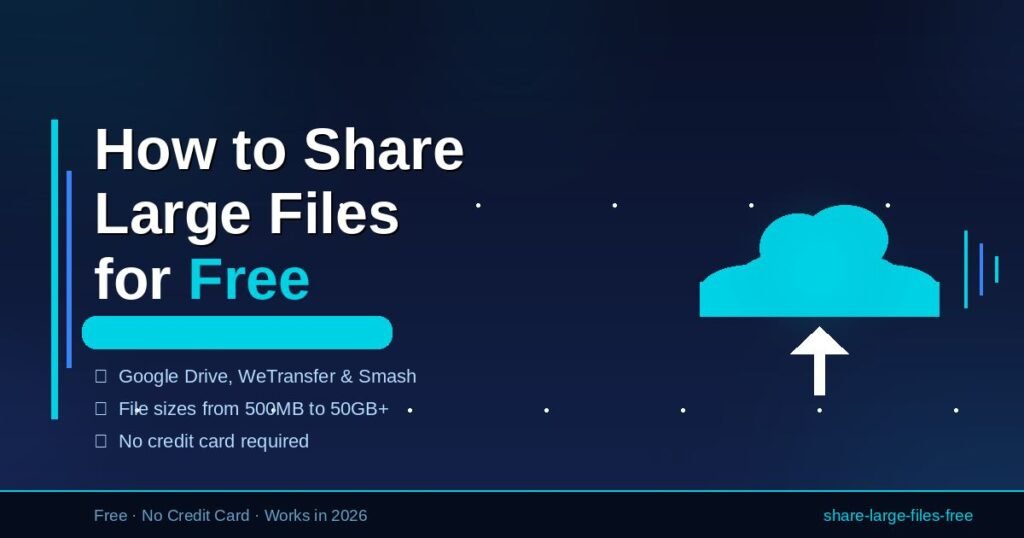
Email was never designed for large files. Gmail blocks attachments over 25MB. Outlook cuts off at 20MB. Most corporate servers are even stricter. So when you need to send a client a 2GB video, share a 500MB design package, or deliver a full software archive to your team, email simply fails.
The good news: you don’t need to pay for a solution. In 2026, several free tools handle large file transfers reliably — no subscription, no credit card, and no forced installs for the person receiving the file. This guide covers the best free options available today, how to use the most practical one step-by-step, what the real limits are (including the fine print), and which tool fits which situation.
What Actually Counts as a “Large File”?
A large file, in practical terms, is anything too big for standard email — and that threshold sits at around 25MB for most providers. But file sizes range wildly, and the tools that handle a 200MB file are different from those that can move 20GB without breaking.
Here’s a simple framework: files under 25MB move fine through email. Files from 25MB to 2GB fit most free cloud tools. Files from 2GB to 15GB narrow your options considerably. Files over 15GB on a free plan require either a specialized service, a compression strategy, or both.
Understanding your file’s size range before picking a tool saves time and prevents the frustration of uploading for 20 minutes only to get an error at the end.
Why this also matters for your recipient: A 10GB file shared via a clean download link is simple. A 10GB file that forces the recipient to install an app, create an account, and verify their email is a friction wall — and many people won’t complete it. The best tool for you is often the one that’s easiest for them.
| File Size | Google Drive (Free) | WeTransfer (Free) | Smash (Free) | |
|---|---|---|---|---|
| Under 25MB | ✅ Works | ✅ Works | ✅ Works | ✅ Works |
| 25MB – 2GB | ❌ Fails | ✅ Works | ✅ Works | ✅ Works |
| 2GB – 15GB | ❌ Fails | ✅ Works | ❌ Fails | ✅ Works |
| 15GB – 50GB | ❌ Fails | ❌ Fails | ❌ Fails | ✅ Works |
| 50GB+ | ❌ Fails | ❌ Fails | ❌ Fails | ✅ (throttled) |
Which Free Tools Actually Work for Large File Sharing?
The best free tool for your situation depends on three factors: file size, how long the link needs to stay active, and whether your recipient is willing to create an account. Here is an honest breakdown of every tool worth using right now.
WeTransfer (Free) — Best for Quick Transfers Under 2GB
WeTransfer is the gold standard for fast, frictionless one-off transfers. The free plan lets you send up to 2GB per transfer with no account required on either end. Enter the recipient’s email, upload the file, and WeTransfer sends them a download link. Files stay live for seven days.
In my testing, WeTransfer upload speeds matched my connection’s full upload bandwidth — no throttling. The recipient experience is equally clean: one link, one click, no prompts, no account.
Real limit to know: 2GB hard cap per transfer. Multiple files are fine as long as the total stays under 2GB. Beyond that, you need a different tool.
Best for: Creative professionals, freelancers sending deliverables to clients, anyone sending video clips, photos, or documents under 2GB to someone they don’t want to burden with account setup.
Google Drive (Free) — Best All-Around Tool for Most People
Google Drive is the most practical large-file solution for most US users. Every Google account includes 15GB of free storage. You can upload files up to 5TB in size (if you have the storage quota), share via link, and control whether recipients can view, download, comment, or edit.
The recipient doesn’t need a Google account to download a file. Shared links don’t expire unless you delete the file. You can share an entire folder of hundreds of files just as easily as a single document.
I’ve used Google Drive to share full video productions, large Figma exports, and multi-gigabyte software archives. It works reliably and the link generation takes about 10 seconds once the file is uploaded.
Real limit to know: The 15GB of free storage is shared across Gmail, Google Drive, and Google Photos. If your Gmail inbox is packed with years of email and attachments, your effective Drive storage may be considerably less. Check your current usage at one.google.com before uploading a 12GB file.
Best for: Anyone sending files up to 15GB, people sharing with recipients who likely already have a Google account, teams that need files to stay accessible long-term.
Smash (Free) — Best for Very Large Files With No Size Limit
Smash offers something genuinely rare: no file size limit on the free plan. You can upload a 100GB video, a 50GB archive, or anything else, and Smash will generate a download link at no cost. Files stay live for 14 days on the free plan.
The tradeoff is upload speed. Smash throttles free-plan transfers, which means large uploads take significantly longer than they would on a paid service. I tested a 3.8GB file on a 100Mbps connection; it took about 45 minutes through Smash compared to roughly 8 minutes on Google Drive.
For time-sensitive transfers, that’s a real issue. For anything where timing is flexible — sharing a wedding video with family, delivering raw footage to an editor who has a few days — it works well.
Real limit to know: Throttled speeds make very large uploads (20GB+) impractical if you need the file delivered soon. No account is required from the recipient, which is a plus.
Best for: Video editors, photographers, anyone with truly large files who doesn’t need them to arrive immediately.
SendGB (Free) — Best Mid-Range Single Transfer Tool
SendGB fills a specific gap: transfers between 2GB and 5GB, no account required from sender or recipient, link expires in seven days. The upload interface is clean, upload speeds are solid, and the service has no mandatory sign-up friction on the receiving end.
It sits between WeTransfer’s 2GB cap and Smash’s unlimited-but-throttled option. If you have a single 4GB file to send and don’t want to configure a Google Drive share or wait through Smash’s throttling, SendGB is the answer.
Best for: One-off transfers of large single files between 2GB and 5GB.
pCloud (Free) — Best for Long-Term Shareable Storage
pCloud gives you 10GB of permanent free cloud storage — no expiry date on your files. You generate public download links that recipients access without any account, and those links stay active as long as your file exists on pCloud.
This matters for recurring sharing situations. If you regularly deliver large files to clients or collaborators, a permanent link that stays live beats re-uploading every week. Dropbox’s free plan has gotten stricter about requiring accounts for downloads; pCloud has not.
Best for: Small business owners, freelancers with recurring client deliverables, anyone who needs files to stay accessible for months.
OneDrive (Free) — Best for Windows Users
Microsoft OneDrive provides 5GB of free storage with every Microsoft account, and on Windows 10 and 11, it’s pre-installed and syncs automatically. Right-clicking any file in File Explorer gives you a “Share” option that generates a download link in seconds — no browser required.
It’s less free storage than Google Drive (5GB vs. 15GB), but the integration with Windows makes it genuinely frictionless for anyone already in the Microsoft ecosystem. Microsoft 365 subscribers get 1TB, but the free 5GB works fine for occasional large transfers.
Best for: Windows power users, anyone already using Microsoft Office or Outlook regularly.
Internxt (Free) — Best for Private or Sensitive Files
Internxt provides 10GB of free storage with zero-knowledge, end-to-end encryption. Files are encrypted on your device before they upload — Internxt’s servers only ever see encrypted data, which means even they cannot access your content.
Google Drive and OneDrive can technically read your unencrypted files (and their terms of service permit certain uses of that content). Internxt cannot. For legal documents, medical records, financial files, or anything genuinely confidential, Internxt is the most trustworthy free option available.
One limitation: recipients do need a free Internxt account to download. For sensitive files, that’s usually an acceptable tradeoff.
Best for: Legal professionals, healthcare workers, financial consultants, anyone handling data that requires genuine privacy.
Full Comparison Table
| Tool | Free Limit | Link Expiry | Recipient Account? | Best Use Case |
|---|---|---|---|---|
| WeTransfer | 2GB/transfer | 7 days | No | Quick, simple transfers |
| Google Drive | 15GB storage | Never | No | Everyday large files |
| Smash | No size limit | 14 days | No | Massive files, no rush |
| SendGB | 5GB/transfer | 7 days | No | Mid-size one-off sends |
| pCloud | 10GB storage | Never | No | Long-term shareable links |
| OneDrive | 5GB storage | Never | No | Windows ecosystem users |
| Internxt | 10GB storage | Never | Yes (both) | Private/confidential files |
How to Share a Large File Using Google Drive (Step-by-Step)
Google Drive is the best starting point for most users. Here’s the exact process to share any file up to 15GB with anyone — even if they have no Google account.
Step 1: Go to Google Drive Navigate to drive.google.com and sign in to your Google account. If you’re signed in to Gmail, you’re already signed in here.
Step 2: Upload your file Click the “+ New” button in the upper-left corner and select “File upload.” Choose your file from your computer. For files over 1GB, the upload will take several minutes depending on your internet speed. A progress bar appears in the bottom-right corner of the Drive window.
Step 3: Open the share menu Once the upload completes, right-click the file in your Drive and select “Share.” Alternatively, click the file once to select it and click the share icon (person with a “+” symbol) in the top toolbar.
Step 4: Change link access A sharing dialog opens. By default, access is set to “Restricted” — only people you specifically invite can see the file. Click the “Change to anyone with the link” option under “General access.” This is the critical step most people miss.
Step 5: Set the correct permission Choose “Viewer” from the role dropdown on the right. This allows recipients to see and download the file without being able to edit or delete your original. For documents where you want feedback, “Commenter” works without giving edit access.
Step 6: Copy and send the link Click “Copy link” and paste it into your email, iMessage, Slack, or any other communication channel. The recipient clicks the link and downloads directly — no login, no account prompt.
Before you send: Open a new incognito or private browser window, paste your link, and confirm it loads without a permission error. This 30-second check prevents the most common file-sharing frustration.
How to Share Files Larger Than 15GB for Free
When files exceed Google Drive’s 15GB free storage ceiling, your options narrow but don’t disappear. Three practical approaches work without any cost.
Option 1: Use Smash
Smash removes the size cap entirely on its free plan. Upload any file, generate a link, share it. The 14-day expiry and throttled upload speed are the only downsides. For files that don’t need to arrive within hours, it’s the cleanest solution.
Option 2: Compress the File First
Free compression tools like 7-Zip (Windows) or The Unarchiver (Mac) can reduce file size by 20–70% for the right file types. A 20GB folder of uncompressed images or documents might compress to 6–9GB — small enough for Google Drive’s free tier.
Important caveat: Video files (.mp4, .mov, .avi) are already compressed. Running a ZIP on a video file will reduce its size by less than 1%. Compression helps most with folders of documents, raw images, spreadsheets, and uncompressed data. Don’t waste time compressing videos.
To compress on Windows with 7-Zip: right-click the folder → 7-Zip → Add to archive → choose ZIP → click OK.
To compress on Mac: right-click the folder → Compress. Done.
Option 3: Split the File Into Smaller Parts
7-Zip lets you split one large archive into multiple smaller parts. A 30GB archive becomes ten 3GB files, each uploadable through Google Drive or WeTransfer separately. The recipient downloads all parts and extracts them together.
To split using 7-Zip: right-click the file → 7-Zip → Add to archive → in the “Split to volumes, bytes” field, type 2900m (for 2.9GB chunks) → click OK. 7-Zip creates sequentially numbered parts (.zip.001, .zip.002, etc.). The recipient needs 7-Zip installed to extract them.
This approach works for any file size at zero cost. It takes more steps, but it’s completely free and reliable.
Common Mistakes That Waste Your Time
Most large-file sharing failures trace back to the same handful of errors. These are the ones worth knowing before your next send.
Assuming your recipient can access your chosen platform If you send a link through Dropbox and your recipient has never used it, they may hit a sign-up wall before downloading. WeTransfer, Google Drive (with the link set correctly), and Smash all allow recipients to download without an account. When in doubt about your recipient’s tech comfort level, use one of those three.
Forgetting that free links expire WeTransfer’s free links die after 7 days. Smash’s last 14. If someone finds the link from a forwarded email three weeks later, it’s already dead. For anything that needs to stay accessible long-term — a portfolio piece, a client deliverable you might need to re-share — use Google Drive, pCloud, or OneDrive.
Skipping the link test If you forget to set Google Drive access to “Anyone with the link,” your recipient hits a “You need to request access” error. Open an incognito window, paste your own link, and confirm it downloads before you send. It takes 30 seconds and prevents a frustrating back-and-forth.
Sending large numbers of individual files without compressing them first Uploading 300 separate image files takes longer, downloads slower on the recipient’s end, and creates a messy experience. ZIP the folder before uploading. One file to manage, one click to download, extracted to the same structure on the other end.
Trusting “free unlimited” claims without reading the fine print Some tools advertise unlimited free transfers but throttle downloads to unusable speeds, cap the number of downloads per link, require the recipient to install a desktop app, or lock core features behind a paid plan. Check the actual free tier specifications before committing. Smash’s no-size-limit free plan is real. Many others are not.
Frequently Asked Questions
What is the easiest way to share large files for free? WeTransfer is the simplest option for files under 2GB — no account needed for either party, just drag and drop. For files up to 15GB, Google Drive is the most practical: upload the file, generate a shareable link set to “Anyone with the link,” and paste it wherever you communicate with the recipient.
Can I send a file larger than 15GB for free? Yes. Smash’s free plan has no file size cap, though upload speeds are throttled, which makes very large uploads slow. Alternatively, compress the file with 7-Zip (works best on documents and images, not video), or split it into multiple smaller parts and upload each through Google Drive or WeTransfer.
How long do free file-sharing links stay active? It depends on the service. WeTransfer free links expire after 7 days; Smash links last 14 days. Google Drive, pCloud, and OneDrive links stay active indefinitely as long as you don’t delete the file from your storage. For anything that needs to remain accessible long-term, use a cloud storage service rather than a transfer-only tool.
Is it safe to use free file-sharing services? Reputable services like Google Drive, WeTransfer, and pCloud encrypt files in transit using TLS. For genuinely sensitive content — legal records, financial documents, medical files — use Internxt, which encrypts files on your device before uploading, so even the service provider can’t access them.
What’s the largest file I can share for free? Smash imposes no official file size limit on its free plan. In practice, very large files (50GB+) are constrained by your internet upload speed and Smash’s throttling, but the platform won’t reject the file. For permanent cloud storage rather than one-off transfers, Google Drive (15GB), pCloud (10GB), and Internxt (10GB) set the ceiling.
The Bottom Line
The right free tool comes down to three things: how large the file is, how long the link needs to stay live, and how much friction your recipient is willing to handle.
For most everyday situations, Google Drive handles files up to 15GB cleanly. Links never expire, nearly everyone already has a Google account, and the sharing process takes less than a minute.
For quick one-off sends under 2GB, WeTransfer is faster and simpler. No configuration, no account required from either person.
For truly large files with no budget, Smash removes the size ceiling entirely. Expect slower uploads, but it gets the job done for free.
Start with the file size. Match it to the right tool in the comparison table above. Test your link before you send it. That covers 95% of large-file sharing situations without spending a dollar.
If you find yourself regularly sharing large files for work, a paid upgrade on pCloud or WeTransfer Pro is worth considering — the cost is modest and the limits are significantly better. But for most people, the free options covered here are more than enough.
Make progress every single day with our daily growth-focused articles.