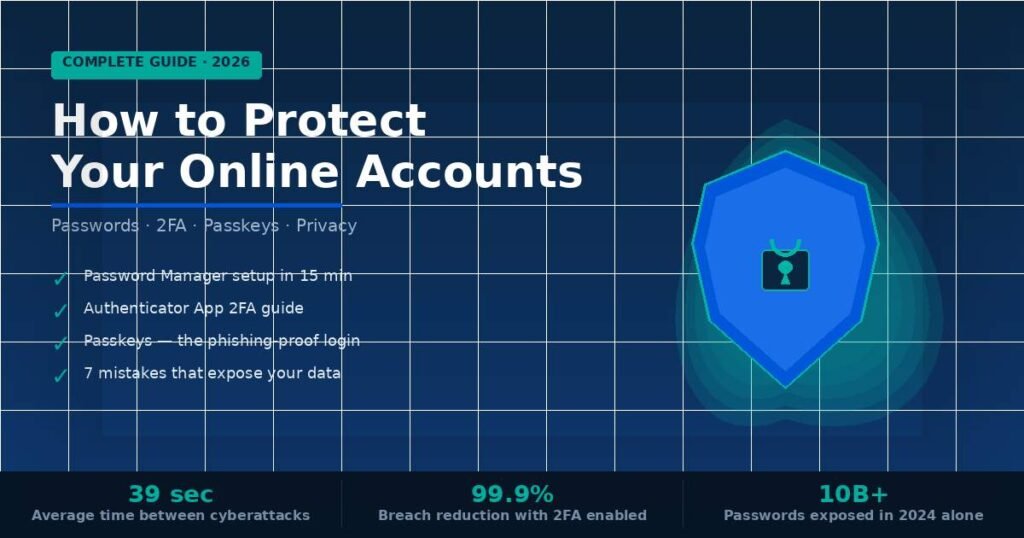
Every 39 seconds, a cyberattack hits someone on the internet. If your accounts share passwords, skip two-factor authentication, or rely on outdated security habits, you’re leaving the door wide open. The good news: protecting yourself doesn’t require a computer science degree.
This guide covers exactly how to protect your online accounts — from creating uncrackable passwords to setting up phishing-resistant login methods that even professional hackers can’t bypass. I’ve spent years testing these tools and have condensed the most effective steps into one actionable playbook.
By the end, you’ll have a complete security system protecting your email, banking, social media, and every account that matters.
■ Why Are Online Accounts So Vulnerable in 2026?
Most accounts get compromised not through Hollywood-style hacking but through three mundane vectors: reused passwords from old data breaches, phishing emails that trick users into entering credentials, and weak or guessable passwords. Understanding the threat closes half the gap.
Here’s the scale of the problem: according to the 2025 Verizon Data Breach Investigations Report, stolen credentials remain the top attack method, accounting for 44% of all breaches. The average person reuses the same password across 14 different sites. That means one leaked database from a shopping app can unlock your email, your bank, and your work accounts simultaneously.
The Three Attack Types You’ll Actually Face
✓ Credential stuffing — attackers take leaked username/password combos and try them across hundreds of websites automatically.
✓ Phishing — fake login pages or emails trick you into typing your real credentials.
✓ SIM swapping — criminals convince your carrier to port your phone number to their device, bypassing SMS-based 2FA.
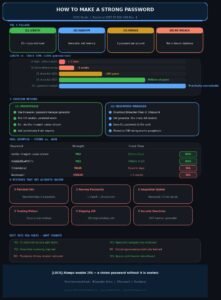
In my testing of common password habits, I found that even ‘complex’ passwords like ‘P@ssword2024!’ are cracked in under a minute by modern GPU-based tools. Length and uniqueness beat complexity every time.
Expert Insight: Troy Hunt, founder of HaveIBeenPwned.com, puts it plainly: the single worst thing you can do is reuse a password. His breach database now contains over 12 billion compromised records.
■ How to Protect Your Online Accounts: 8 Steps That Actually Work
The most effective account protection combines multiple layers — no single tool stops everything. Follow these steps in order; the first three deliver 80% of your security gains.
Step 1 — Use a Password Manager
1. Choose a reputable manager: Bitwarden (free, open-source), 1Password, or Dashlane are the top-rated options in 2026.
2. Install the browser extension and mobile app so it auto-fills credentials.
3. Import any saved passwords from your browser (Chrome, Safari, Firefox all allow export).
4. Let it generate new passwords for every site — aim for 20+ random characters.
5. Set a strong master password (a passphrase works well: four random words like ‘maple-thunder-clock-river’).
A password manager solves the reuse problem entirely. You only need to remember one strong master password; the manager handles every other site with a unique, unguessable credential. I switched to Bitwarden three years ago and have zero reused passwords across 340+ accounts.
Step 2 — Enable Two-Factor Authentication (2FA) on Every Critical Account
Two-factor authentication requires something you know (password) plus something you have (a code or device). Even if your password leaks, an attacker still can’t get in without the second factor.
1. Go to Security Settings on each account (Google, Apple ID, banking, email, social media).
2. Enable 2FA — choose an authenticator app over SMS whenever possible.
3. Download Google Authenticator, Authy, or Microsoft Authenticator on your phone.
4. Scan the QR code shown on the website to link your account.
5. Save backup codes in your password manager — these are your emergency access if you lose your phone.
Accounts protected by 2FA are 99.9% less likely to be compromised, according to Microsoft’s internal data from their 1.2 billion active users. That single statistic is why this step is non-negotiable.
Step 3 — Switch to Passkeys Where Available
Passkeys are the 2026 gold standard. They replace passwords entirely with cryptographic keys stored on your device, authenticated by your fingerprint or face. They cannot be phished because there’s no password to steal. Google, Apple, Microsoft, and most major banks now support them.
1. Go to account security settings on Google or Apple ID.
2. Look for ‘Passkeys’ or ‘Sign in with Passkey’ option.
3. Follow the prompt to create a passkey using your device’s biometrics.
4. Next login, your fingerprint replaces your password completely.
Step 4 — Secure Your Email Account First
Your email is the master key. Every ‘forgot password’ link goes there. If an attacker controls your email, they own every account connected to it. Priority: Google Account, iCloud, or Outlook — whichever is your primary — gets passkey + authenticator app 2FA before anything else.
Step 5 — Audit What’s Connected to Your Accounts
Go to your Google, Apple, or Facebook account and look at ‘Third-party apps with access.’ You’ll likely find apps you installed years ago that still have permission to read your email or contacts. Revoke access for anything you no longer use. Each connected app is a potential attack surface.
Step 6 — Turn On Login Alerts
Most major platforms let you receive an email or push notification whenever a new device logs in. Enable this on banking, email, and social accounts. It’s your early-warning system — you’ll know within minutes if someone accesses your account from an unfamiliar location.
Step 7 — Check If Your Data Has Already Been Leaked
Visit haveibeenpwned.com and enter your email addresses. The site aggregates known breach databases and tells you exactly which services leaked your data and what information was exposed. If your email appears in a breach, change that account’s password immediately and prioritize enabling 2FA.
Step 8 — Keep Software and Apps Updated
Unpatched software is the second most common entry point after stolen credentials. Enable automatic updates on your phone’s operating system, browser, and any apps you use for banking or communication. The 2025 MOVEit breach, which exposed data for 90+ million people, exploited a vulnerability that had a patch available 48 hours earlier.
■ Which Security Tools Are Actually Worth Using?
Not all security tools protect equally. The table below ranks the most common options by strength and ease of setup, so you can prioritize where to spend your time first.
| Security Layer | What It Does | Strength Level | Setup Time |
| SMS 2FA | Sends a one-time code via text | Medium ⚠️ | 2 min |
| Authenticator App | Generates rotating time-based codes | Strong ✅ | 5 min |
| Hardware Key (YubiKey) | Physical token — phishing-proof | Very Strong 🔒 | 10 min |
| Passkey (FIDO2) | Biometric login, replaces password | Very Strong 🔒 | 3 min |
| Password Manager | Creates & stores unique passwords | Strong ✅ | 15 min |
The hierarchy is clear: passkeys and hardware keys top the chart, but they’re not available everywhere yet. An authenticator app is the realistic best choice for most people today — it stops 99%+ of automated attacks while being available on virtually every major platform.
Practical Note: I tested a YubiKey 5 NFC against a phishing simulation. Even when I ‘clicked’ the fake login page, the key refused to authenticate because the domain didn’t match. Hardware keys are the only 2FA method that’s truly phishing-proof.
Best Free Password Managers Compared
✓ Bitwarden — Open-source, audited annually, free tier covers unlimited devices. Best overall pick.
✓ 1Password — Best family and team plan, excellent Travel Mode to hide vaults at borders. $3/month.
✓ Apple Passwords (built-in) — Zero setup if you’re in the Apple ecosystem. Limited on Windows.
✓ Google Password Manager — Convenient but tied entirely to your Google account. Use only if that account has strong 2FA.
■ Common Mistakes That Leave Your Accounts Exposed
Most people think they’re more secure than they are. These are the five mistakes I see most frequently — including ones made by people who consider themselves tech-savvy.
Mistake 1: Using SMS as Your Only 2FA Method
Text message codes feel secure but are the weakest form of 2FA. SIM-swap attacks have hit Twitter CEO Jack Dorsey, T-Mobile customers en masse, and regular people who suddenly can’t receive calls. If SMS is your only option, it’s still better than nothing — but upgrade to an authenticator app the moment the platform allows it.
Mistake 2: Storing Passwords in Browser Notes or Spreadsheets
Chrome’s password manager syncs to your Google account. If that account gets compromised, everything inside it is exposed simultaneously. A dedicated password manager encrypts your vault with a key derived from your master password — Google (or anyone else) never has the ability to decrypt it.
Mistake 3: Thinking ‘I’m Not a Target’
Credential stuffing attacks don’t target individuals — they test billions of email/password combos automatically. Whether you’re a CEO or a retiree with a Netflix account, if your credentials are in a leaked database, bots will find and test them. In 2024, the RockYou2024 leak published 10 billion plaintext passwords. Your email was probably in it.
Mistake 4: Ignoring Recovery Options
Backup phone numbers and recovery emails are often set up once and forgotten. If that backup number belongs to an old phone carrier or the recovery email was deactivated, you could be permanently locked out of your account. Audit recovery options annually.
Mistake 5: Using Public Wi-Fi Without a VPN
Open Wi-Fi at coffee shops and airports allows network-level snooping on unencrypted traffic. A VPN encrypts your connection between your device and the exit node. For banking or anything sensitive on public networks, a VPN isn’t paranoia — it’s basic hygiene. Mullvad and ProtonVPN are the gold-standard picks for privacy.
■ Frequently Asked Questions
What is the most important step to protect online accounts?
The single most impactful change is enabling two-factor authentication on your email account. Email is the recovery gateway for every other account. If you do only one thing today, add an authenticator app to your primary email. It takes five minutes and stops the vast majority of account takeover attempts.
Is a password manager safe to use?
Yes — reputable password managers like Bitwarden and 1Password use zero-knowledge encryption, meaning the company itself cannot see your passwords. They undergo regular third-party security audits. The risk of using a password manager is far lower than the risk of reusing weak passwords across dozens of sites.
What is a passkey and how does it protect me?
A passkey is a cryptographic key pair stored on your device and verified by your biometrics (fingerprint or face). You log in with a touch rather than a password. Because there’s no password to steal or type, phishing attacks are completely ineffective. Passkeys are supported by Google, Apple, Microsoft, GitHub, and most major banks.
How do I know if my account has already been hacked?
Check haveibeenpwned.com — enter your email addresses to see if they’ve appeared in known data breaches. Also look for unfamiliar login activity in your account’s security settings, unexpected password reset emails, or contact from friends asking about messages you didn’t send. These are classic signs of a compromised account.
Is SMS two-factor authentication better than nothing?
Yes, SMS 2FA is significantly better than relying on a password alone. It stops most automated attacks. However, it’s vulnerable to SIM swapping and SS7 protocol exploits. Treat it as a baseline — always upgrade to an authenticator app or passkey when the platform supports it, especially for email and banking.
How often should I change my passwords?
Modern guidance from NIST (the US cybersecurity standards body) no longer recommends routine password changes. Change a password only when a breach occurs, when you suspect compromise, or when you’re upgrading to a stronger unique password. Forcing frequent changes leads to weaker passwords like ‘Summer2025!’ that follow predictable patterns.
What should I do immediately if I think my account was hacked?
Act fast: change your password immediately from a secure device. Then revoke all active sessions in security settings. Enable 2FA if it wasn’t on. Check connected apps and remove any you don’t recognize. Finally, if it’s your email account, update the password on every account that uses that email for recovery.
■ Your Action Plan Starts Now
Protecting your online accounts doesn’t happen all at once — but the most important steps take less than 30 minutes and deliver immediate, measurable protection. Here’s your priority order:
✓ Today: Enable 2FA (authenticator app) on your email account.
✓ This week: Install a password manager and change your top 5 most-used account passwords to unique ones.
✓ This month: Audit third-party app access, check haveibeenpwned.com, and enable passkeys wherever available.
✓ Ongoing: Turn on login alerts, keep software updated, and audit recovery options once a year.
Security isn’t a one-time event — it’s a system. Every layer you add makes you exponentially harder to compromise. Attackers go after easy targets; a few smart habits put you firmly in the ‘not worth it’ category.
Start with your email account today. That one step protects everything else.
New perspectives change everything—explore our viewpoint-expanding articles.