Your WiFi is probably less secure than you think. Most home routers ship with default passwords, outdated firmware, and settings nobody ever revisits. To quickly check if your WiFi is secure: log into your router, confirm it uses WPA2 or WPA3 encryption, verify the admin password has been changed from the factory default, and review which devices are connected. If any of those three are wrong, your network has a real vulnerability right now.
Here’s how to work through each one properly.
What Does “Secure WiFi” Actually Mean?
A secure WiFi network does three things: it encrypts the data traveling across it, controls who can join it, and limits what damage someone can do if they get in. Most home networks only cover the first one — barely.
Encryption scrambles your data in transit so someone sitting in your driveway with a laptop can’t read what you’re sending. The encryption standard your router uses is the biggest single factor in how secure your connection actually is.
WPA3 is the current gold standard. It uses Simultaneous Authentication of Equals (SAE), a handshake method that makes brute-force password attacks far harder. WPA3 has been mandatory for all Wi-Fi certified devices since 2020.
WPA2 is still acceptable for most households when paired with a strong password. It uses AES-128 encryption, which holds up — the real risk is the KRACK vulnerability discovered in 2017. That was patched in firmware updates, but only if your router has actually received those updates.
WPA and WEP are broken. Full stop. Anything older than WPA2 is unsafe by modern standards. If your router only offers WEP, replace it.
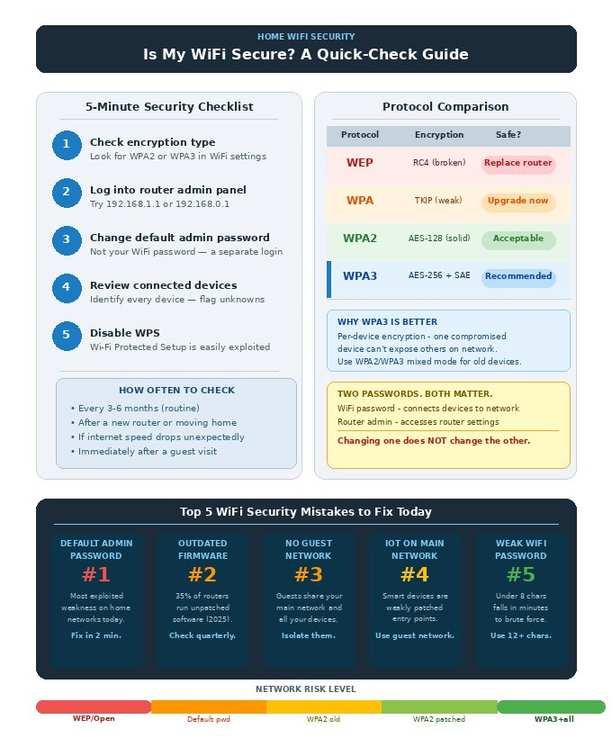
Here’s the practical comparison:
| Protocol | Encryption | Brute-Force Resistance | Verdict |
|---|---|---|---|
| WEP | RC4 (broken) | None | Replace the router |
| WPA | TKIP | Weak | Upgrade immediately |
| WPA2 | AES-128 | Moderate (with strong password) | Acceptable |
| WPA3 | AES-192/256 + SAE | Strong | Enable if available |
One thing worth knowing about WPA3: it gives each device its own encryption key. That means if one device on your network gets compromised, an attacker can’t use it to read traffic from your other devices. WPA2 uses a shared key across everything — crack it once and all traffic is exposed.
How to Check If Your WiFi Is Secure Right Now
This takes about ten minutes and requires no special software.
Step 1: Check your encryption type
On Windows, click the WiFi icon in the taskbar, then select “Properties” on your network name. Look for “Security type.” On a Mac, hold Option and click the WiFi icon — the dropdown shows the security type directly. On iPhone or Android, go to Settings > WiFi and tap your network name.
You want WPA2 or WPA3. If you see WEP, WPA (without a number), or “Open/None,” fix that before anything else.
Step 2: Log into your router admin panel
Open a browser and type your router’s IP address into the address bar. This is usually 192.168.1.1 or 192.168.0.1. The correct address is printed on the sticker on the back of your router.
Enter your admin username and password. If you’ve never changed these, the defaults are also on that sticker. If the sticker says admin/admin or admin/password and you’re about to log in with those, stop — that’s the fix you need to make first.
Step 3: Check connected devices
Inside the admin panel, look for a section called “Connected Devices,” “DHCP List,” or “Client List.” Every device on your network appears here with a name and MAC address.
Go through the list and account for everything: your phone, your partner’s phone, the smart TV, the laptop. In my own testing, I found a neighbor’s old tablet still connected to my network from a guest login I’d forgotten to close months earlier. Anything you can’t identify warrants a closer look.
Step 4: Disable WPS
Wi-Fi Protected Setup is a convenience feature that lets devices join your network by pressing a button or entering an 8-digit PIN. The PIN method is fundamentally broken — it can be cracked in hours using publicly available tools. Turn WPS off in your router settings unless you have a specific reason to need it.
Step 5: Run a free vulnerability scan
F-Secure offers a free Router Checker tool that searches the National Vulnerability Database for known weaknesses specific to your router model. It’s worth running once every six months or after major firmware updates.
The Five Biggest WiFi Security Mistakes at Home
Most home networks don’t get compromised through sophisticated attacks. They fail because of predictable, avoidable mistakes.
Leaving the default router admin password unchanged
Default admin credentials for routers are public knowledge — printed in the manual, listed on manufacturer websites, and catalogued in every hacker’s toolkit. Default credentials are the most widely exploited weakness on home networks, consistently ranking above all other attack vectors.
The WiFi password and the router admin password are two different things. Most people change the WiFi password and forget the admin login entirely. These are separate accounts. Changing one does nothing for the other.
Not updating router firmware
Routers run software that has bugs, and those bugs get patched in firmware updates. The problem is that routers don’t nag you to update the way your phone does. In a 2025 study, 35% of all tested routers ran outdated standards with known unpatched vulnerabilities. Check for firmware updates in your router admin panel every three to six months.
Sharing your main WiFi password with guests
When houseguests log into your primary network, they’re sitting alongside your laptop, banking sessions, and smart home devices. If their phone carries malware, it’s now on your network too. Set up a separate guest network in your router settings — it takes five minutes and keeps visitors completely isolated from your main devices.
Putting IoT devices on your primary network
Smart TVs, doorbells, thermostats, baby monitors — these devices often have weak security, receive firmware updates slowly, and sometimes never at all. Connect them to a separate guest network so that if one gets compromised, an attacker can’t pivot from a smart light bulb to your work laptop.
Using a short or reused WiFi password
WPA2 is vulnerable to brute-force attacks, where an attacker repeatedly guesses passwords. A 12-character password mixing letters, numbers, and symbols takes exponentially longer to crack than an 8-character one. Never use your address, phone number, or anything predictable. And never reuse a password from another account — your WiFi password should exist nowhere else.
WiFi Security Myths Worth Clearing Up
“Hiding my network name (SSID) makes it secure”
It doesn’t. A hidden SSID still broadcasts — it just broadcasts without a name attached. Anyone using basic network analysis tools finds it in seconds. Hiding your SSID is security theater that mostly causes inconvenience for you when connecting new devices. Hiding your network name adds slight obscurity but doesn’t improve actual security.
“My router’s firewall protects me completely”
Your router’s built-in firewall blocks certain types of inbound traffic from the internet. It does very little against threats that originate inside your network, like an infected device you already own, and offers no protection against someone intercepting your WiFi traffic from nearby. A firewall is one layer, not a complete solution.
“I’d know if someone were on my network”
Probably not. In 2025, threat actors launched an average of 820,000 malicious IoT attacks every single day — a 46% year-over-year increase. Most network intrusions are quiet by design. Attackers want persistent, silent access, not to announce themselves. The only reliable way to know who’s on your network is to check the connected devices list in your router admin panel.
“A VPN makes my home WiFi secure”
A VPN encrypts traffic between your device and the VPN server. It does nothing to secure your home network itself. It won’t fix a default admin password, won’t remove an unauthorized device, and won’t protect devices on your network that aren’t using the VPN. VPNs are useful, but they solve a different problem than home network security.
“WPA2 is good enough, WPA3 is overkill for home use”
WPA3 gives each device its own encryption key. Under WPA2, all devices on a network share a single key — crack that key once and all traffic across the entire network is exposed. WPA3 changes the blast radius of a single compromised device entirely. If your router supports it, enable it. Most modern routers support a mixed WPA2/WPA3 mode, which lets newer devices benefit from WPA3 while older gadgets still connect.
Frequently Asked Questions
How do I check what encryption type my WiFi uses?
On Windows, click the WiFi icon in the taskbar, select your network, then Properties and look for Security Type. On Mac, hold Option and click the WiFi icon in the menu bar. On iPhone or Android, tap your network name in WiFi settings. You want WPA2 or WPA3. WEP or open networks need immediate attention.
What should I do if I find an unknown device on my network?
Change your WiFi password immediately. This forces every device to re-authenticate and disconnects anyone who doesn’t have the new password. Check the device list again after changing it. If the unknown device reappears, someone near you has your new credentials — either someone you shared the password with passed it along, or you have a more serious problem worth investigating with your ISP.
Is WPA2 still safe in 2026?
Yes, with conditions. WPA2 paired with a strong, unique password and updated router firmware remains a practical baseline for most households. Its main weaknesses — brute-force attacks and the KRACK vulnerability — are largely mitigated by strong passwords and patched firmware. That said, if your router supports WPA3, upgrade to it.
How often should I check my router’s security settings?
Every three to six months is a reasonable cadence. Always check after moving into a new home, getting a new router, or any time your internet suddenly slows without an obvious cause. A spontaneous speed drop is sometimes the first sign that someone else is using your connection.
Does changing my WiFi password kick off existing intruders?
Yes. Changing the password forces every device off the network. All devices have to reconnect with the new credentials. Anyone without the new password cannot get back in. This is the fastest way to clear unauthorized users from your network.
Can someone hack my WiFi from the street?
Theoretically yes, practically depends on your password. A WPA2 network with a strong 12-plus character password would take years to crack with current hardware. The far more common attacks target default admin credentials and weak passwords under eight characters. Sitting outside your home and brute-forcing a strong password is not how most home networks actually get compromised.
Should I use MAC address filtering?
MAC filtering whitelists specific devices so only they can join your network. It sounds useful, but MAC addresses can be spoofed — an attacker can copy a legitimate device’s identifier and connect anyway. It adds minor friction but not real security, and the ongoing maintenance of the whitelist is usually more trouble than it’s worth.
What’s the difference between my WiFi password and my router admin password?
Your WiFi password is what you enter on a phone or laptop to join the network. Your router admin password is what you enter at your router’s IP address to access its settings panel. They’re completely separate credentials. Changing one does not change the other. Both should be strong and unique — most people change the WiFi password and leave the admin password at factory defaults, which is a significant and common vulnerability.
The Bottom Line
Most home WiFi networks aren’t insecure because the technology is broken. They’re insecure because the defaults are weak and nobody ever revisits them.
The checklist is short: confirm WPA2 or WPA3 encryption, change the default router admin password, use a strong and unique WiFi password, update your router’s firmware, put guests and smart home devices on a separate network, and turn off WPS.
None of that requires technical expertise. It takes about 20 minutes total. Start with the router admin password — that single change closes more attack surface than anything else on this list. Everything else is maintenance from there.
The road to mastery runs through our expertise-building knowledge articles.