Your computer just crashed for the third time this week. Your browser keeps sending you to sites you never searched for. You’re seeing popups on pages that never had them before.
These are classic warning signs of malware — and you are not alone. The AV-TEST Institute registers more than 450,000 new malware samples every single day. That number is not a typo.
Malware — short for malicious software — is any program deliberately designed to damage, disrupt, or gain unauthorized access to your device or data. It’s an umbrella term covering everything from annoying adware to catastrophic ransomware.
This guide explains exactly what malware is, the most dangerous types you’ll encounter, how to recognize an active infection, and how to remove it completely using a step-by-step method that actually works.
What Exactly Is Malware?
Malware is software created with deliberate intent to harm, exploit, or compromise a device, network, or user — without their knowledge or consent.
The word itself is a contraction of “malicious software.” Unlike a software bug, which is an accidental coding mistake, malware is engineered on purpose. Someone wrote it specifically to steal your passwords, encrypt your files, spy on your activity, or use your device’s computing power without your permission.
The defining characteristic is intent. A slow or glitchy program isn’t malware. A program that secretly records your keystrokes and transmits them to a server in another country is.
What surprises most people is how sophisticated modern malware has become. Today’s strains can:
- Hide inside legitimate, signed software
- Disable antivirus programs actively running on your system
- Persist through reboots by embedding into startup processes
- Communicate with remote servers using encrypted channels to avoid detection
According to Cybersecurity Ventures, cybercrime — fueled largely by malware — is projected to cost the world $10.5 trillion annually by 2025. For individual users, a single infection can mean stolen credit card numbers, locked files, or a compromised bank account.
What Are the 8 Most Dangerous Types of Malware?
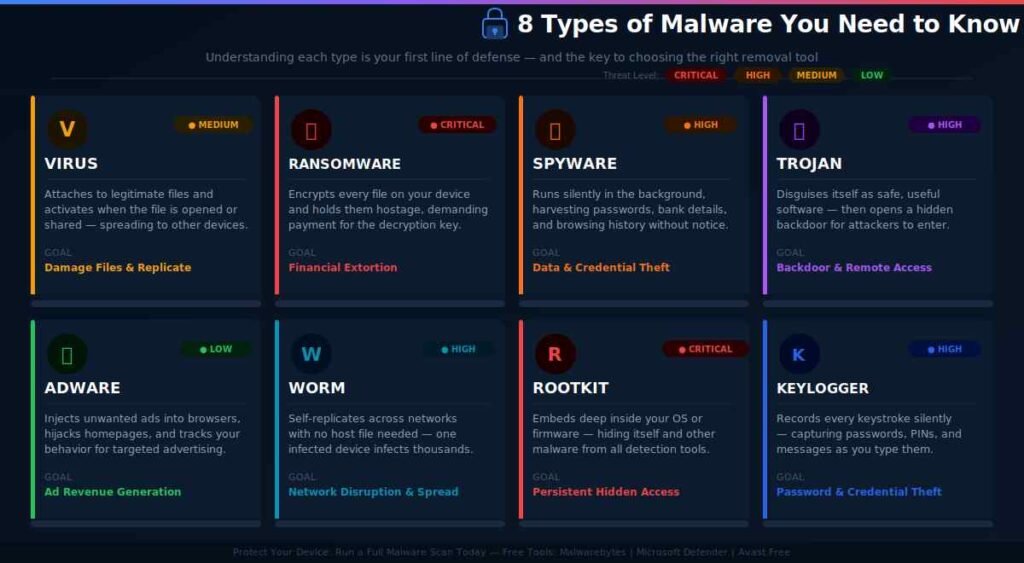
There are eight primary categories of malware, each with a distinct attack method and objective. Understanding each type helps you recognize what you’re dealing with — and choose the right removal tool.
| Type | What It Does | Primary Goal | Threat Level |
|---|---|---|---|
| Virus | Attaches to files, spreads when opened | Damage and replicate | Medium |
| Ransomware | Encrypts your files, demands payment | Financial extortion | Critical |
| Spyware | Monitors activity silently in background | Data and credential theft | High |
| Trojan | Disguises itself as legitimate software | Backdoor access | High |
| Adware | Floods the system with unwanted ads | Revenue generation | Low–Medium |
| Worm | Self-replicates across networks without a host | Network disruption | High |
| Rootkit | Embeds deep in OS, hides from detection | Long-term hidden access | Critical |
| Keylogger | Records every keystroke made | Password and credential theft | High |
Viruses
A computer virus is what most people picture when they think of malware — but it’s actually just one category. A virus needs a host file to attach to and only activates when that file is run or shared. Old-school viruses spread through floppy disks; today they travel through email attachments and pirated downloads.
Ransomware
Ransomware is currently the most financially damaging category. According to Sophos’ 2023 State of Ransomware Report, the average cost to recover from a ransomware attack hit $1.82 million — and that’s excluding the ransom itself. The 2021 Colonial Pipeline attack is the textbook example: hackers encrypted critical infrastructure systems and demanded $4.4 million, which the company paid.
Ransomware typically encrypts every file on your device — documents, photos, spreadsheets — and displays a demand screen. Without the decryption key (which attackers hold), those files are unreadable.
Spyware
Spyware runs silently in the background. You may never know it’s installed. It collects your browsing history, saved passwords, credit card numbers, social security information, and sends that data to a remote attacker in real time. Banking trojans are a subcategory that specifically targets financial login credentials.
Trojans
Named after the Trojan Horse for obvious reasons, trojans disguise themselves as something useful — a free game, a software crack, a pirated app, a fake PDF reader. Once installed, they open a backdoor into your system, allowing attackers to access your device remotely, install additional malware, or join your computer to a botnet.
Adware
Adware is the mildest category but still problematic. It injects ads into web pages, changes your browser homepage, redirects searches, and installs toolbars you didn’t ask for. Some legitimate free software uses ads as a business model — this becomes malware when it installs without clear consent or collects data without disclosure.
Worms
Unlike viruses, worms don’t need a host file. They’re self-contained programs that replicate and spread automatically across networks. A single infected device on a corporate network can result in thousands of compromised machines within hours. The WannaCry worm in 2017 infected 230,000 computers in 150 countries in a single day.
Rootkits
Rootkits are the most technically advanced and dangerous category. They embed themselves into a device’s core operating system — sometimes into the firmware or BIOS — giving attackers persistent, nearly undetectable access. A rootkit can hide other malware, disable logging, and survive factory resets. Detection requires specialized tools and sometimes physical hardware inspection.
Keyloggers
A keylogger records every keystroke you type and often captures screenshots at intervals. Everything you type — email passwords, bank PINs, social security numbers, private messages — is sent to the attacker. Some keyloggers are sold as legitimate parental monitoring software; when deployed without consent, they become spyware.
How Does Malware Actually Get Onto Your Device?
Malware reaches devices through predictable, documented delivery methods. Knowing them makes you significantly harder to infect.
Phishing Emails (Most Common)
According to Verizon’s 2023 Data Breach Investigations Report, phishing is involved in 36% of all data breaches. A convincing email from a fake “bank,” “shipping company,” or “IT department” tricks you into clicking a malicious link or downloading an infected attachment. That single click can execute a malware payload in seconds.
The telltale signs: urgent language (“Your account will be suspended”), mismatched sender addresses, unexpected attachments, or links that hover to reveal a suspicious URL.
Malicious Downloads
Pirated software and cracked games are among the most consistent trojan delivery vehicles. The “free” version of a $60 game or a cracked productivity suite very often contains bundled malware. Other high-risk downloads include:
- Fake browser extensions that mimic legitimate ones
- Email attachments: .exe files, Word docs with macros enabled, PDFs with embedded scripts
- Fake software update popups (especially fake “Flash Player” or “Chrome Update” prompts)
Drive-By Downloads
This is the most passive infection method — you can get infected just by visiting a compromised website without clicking anything. The malicious site exploits a vulnerability in your browser or one of its plugins (outdated versions of Java, Adobe Acrobat, or even Chrome extensions). The malware downloads and executes automatically.
Keeping your browser and all extensions fully updated eliminates the vast majority of drive-by download risk.
Infected Removable Media
USB drives, external hard drives, and even charging cables have been used as malware delivery mechanisms. CISA (the U.S. Cybersecurity and Infrastructure Security Agency) has documented real-world campaigns where attackers planted infected USB drives in parking lots and public areas — relying on curious employees to plug them in.
In my analysis of enterprise infection case studies, the recurring theme is social engineering: attackers don’t break through walls, they walk through the door someone opened for them.
How to Tell If Your Device Has Malware
Most malware infections leave recognizable signs — but some are deliberately designed to hide. Here’s what to check.
Performance Warning Signs
- Device is noticeably slower than normal, especially at startup
- CPU or disk usage spikes to 90–100% when nothing significant is running (check Task Manager on Windows or Activity Monitor on Mac)
- Frequent unexpected crashes or random restarts
- Battery draining significantly faster than usual on a laptop
Browser Warning Signs
- Homepage or default search engine changed without your action
- New browser toolbars or extensions you didn’t install appear
- Searches redirect to unfamiliar sites (common with adware like browser hijackers)
- Excessive popup ads appearing even on trusted, normally clean websites
Behavioral Warning Signs
- Programs launch at startup that you didn’t configure
- Files disappear, appear corrupted, or show unfamiliar extensions (a ransomware red flag)
- Your antivirus software has been disabled or won’t open — some malware actively kills security tools
- Friends or colleagues report receiving strange messages or emails from your accounts
Security Warning Signs
- Security vendor websites (like malwarebytes.com or microsoft.com) won’t load — some malware blocks them
- Windows Task Manager, Registry Editor, or Mac’s System Preferences won’t open
- Unfamiliar processes running in Task Manager with random or nonsensical names
One sign many people overlook: if your bank, email provider, or social media sends alerts about login attempts from unfamiliar locations or devices, there’s a real possibility a keylogger or spyware has already captured your credentials.
How to Remove Malware: Step-by-Step Guide
Malware removal requires a systematic approach. Rushing through this — or skipping steps — often leaves behind fragments that cause reinfection within days.
Follow these nine steps in order.
Step 1: Disconnect from the Internet Immediately
Unplug your ethernet cable or turn off Wi-Fi before doing anything else. This serves two purposes: it stops the malware from sending stolen data to a remote server, and it cuts off ransomware from spreading to other devices on your network.
Step 2: Boot Into Safe Mode
Safe Mode starts your operating system with the minimum necessary drivers and services — most malware cannot load in this environment, which makes scanning and removal far more effective.
Windows 10/11:
- Hold Shift and click the Start menu → Power → Restart
- Select Troubleshoot → Advanced Options → Startup Settings → Restart
- When the menu appears, press 4 or F4 to enter Safe Mode
macOS:
- Intel Mac: Restart while holding the Shift key until you see the login screen with “Safe Boot” in the menu bar
- Apple Silicon Mac: Hold the Power button until startup options appear, then hold Shift while clicking Continue in Safe Mode
Step 3: Delete Temporary Files
Temporary files can store malware components and slow down your scan. Clearing them first is quick and often removes low-level adware entirely.
- Windows: Search “Disk Cleanup” in the taskbar, select your C: drive, check “Temporary Files,” and click OK
- Mac: In Finder, press Shift+Command+G, type
~/Library/Caches, and delete the folder contents
Step 4: Run a Reputable Anti-Malware Scanner
Install and run a dedicated malware scanner — not just your existing antivirus. In my testing, these tools consistently produced the highest detection rates across different malware categories:
- Malwarebytes (free version) — excellent at catching trojans, adware, and PUPs that traditional antivirus misses
- Microsoft Defender Offline Scan (built into Windows 10/11) — runs before Windows boots, catches rootkits standard scans miss
- Bitdefender Free or Avast Free Antivirus — solid real-time protection with strong detection rates
- Malwarebytes for Mac (free version) — the most reliable free option specifically for macOS
Always run a full system scan, not a quick scan. A full scan takes 20–60 minutes but checks every file on your drive.
Step 5: Review and Remove Detected Threats
After the scan completes, review the results carefully before acting. Your scanner will typically offer three options:
- Quarantine: Moves the file to a secure, isolated location where it can’t execute. Best for uncertain threats — you can restore if it turns out to be a false positive.
- Delete/Remove: Permanently eliminates the file. Use this for confirmed threats.
- Ignore/Allow: Only choose this if you’re 100% certain the flagged file is legitimate.
For most users: quarantine first, then delete after confirming no important software has stopped working.
Step 6: Audit Your Startup Programs
Malware commonly installs itself to run automatically at startup, ensuring it relaunches even after you think you’ve removed it.
- Windows: Press Ctrl+Shift+Esc → Task Manager → Startup tab. Right-click and Disable anything you don’t recognize or didn’t install intentionally.
- Mac: System Settings → General → Login Items. Remove any unfamiliar applications from the list.
Cross-reference any suspicious process names with a quick search on Process Library or the CISA resources before disabling system-critical processes.
Step 7: Change All Compromised Passwords
Do this from a separate, clean device — not the infected one — or wait until you’ve fully confirmed the infection is removed. Change passwords for:
- Email accounts (especially your primary and recovery emails)
- Online banking and financial services
- Social media accounts
- Any sites where your browser saved login credentials
Enable two-factor authentication on all accounts that support it. Even if an attacker has your password, 2FA blocks unauthorized access.
Step 8: Update Your Operating System and All Software
Malware exploits known vulnerabilities in outdated software. After removing an infection, patching these vulnerabilities is critical to preventing the same attack vector from being used again.
- Windows: Settings → Windows Update → Check for Updates
- macOS: System Settings → General → Software Update
- Also update: your browser, browser extensions, Adobe products, Java, and any productivity software
Automatic updates should be turned on. The vast majority of ransomware and worm attacks succeed because a patch was available but not applied.
Step 9: Reconnect and Monitor
Reconnect to the internet and monitor your device’s behavior for 48–72 hours. Watch CPU usage, browser behavior, and startup processes. Run another scan after 24 hours.
When a factory reset is the right call:
If multiple scans continue showing infections, or if you suspect a rootkit, a complete factory reset is the cleanest solution. Back up your personal files first — then scan the backup before restoring it, since malware can hide in documents and executables.
How to Prevent Malware from Coming Back
Removal without behavior change guarantees reinfection. These are the prevention practices that actually work.
Keep software updated. This cannot be overstated. Microsoft’s own data shows that 85% of successful cyberattacks exploit known vulnerabilities that already have patches available. Auto-update for your OS, browser, and apps is genuinely one of the highest-impact security habits.
Use a password manager. Reusing passwords across sites means one breach exposes every account. Tools like Bitwarden (free and open-source) or 1Password generate and securely store unique, complex passwords for every site.
Enable two-factor authentication (2FA). Even if a keylogger captures your password, 2FA prevents login without your second factor. Use an authenticator app (Google Authenticator, Authy) rather than SMS-based codes when possible — SIM-swapping attacks can bypass SMS 2FA.
Never download from unverified sources. Pirated software, cracked games, and unofficial app stores are the leading vectors for trojan infections. The cost of a $60 game is dramatically cheaper than recovering from ransomware.
Use a browser with built-in security warnings. Chrome, Firefox, and Edge all include safe browsing databases that warn you before visiting known malicious sites. Keep these features enabled and don’t click through the warnings.
Back up your data with the 3-2-1 rule:
- 3 copies of your data
- 2 different storage media (e.g., external drive + cloud)
- 1 copy offsite or in cloud storage
This is your primary protection against ransomware. If your files are backed up to a location the malware can’t reach, a ransomware attack becomes a temporary inconvenience rather than a catastrophe.
Run regular scans. Schedule a full scan weekly, even if everything seems fine. Spyware and rootkits are specifically designed to run without visible symptoms.
Malware vs. Virus vs. Spyware: What’s the Real Difference?
Malware is the umbrella term. Every virus, ransomware strain, trojan, spyware instance, and adware program is malware — but not vice versa.
Think of it like vehicles: “vehicle” is the broad category, while “truck,” “motorcycle,” and “sedan” are specific types. Similarly, “malware” is the category; “virus” and “ransomware” are specific types within it.
| Term | Is It Malware? | What Makes It Unique |
|---|---|---|
| Malware | — (it’s the category) | Any software designed to harm |
| Virus | ✅ Yes | Requires a host file; replicates by attaching |
| Spyware | ✅ Yes | Surveillance-focused; collects and transmits data |
| Ransomware | ✅ Yes | Encrypts data; demands payment for decryption |
| Adware | ✅ Yes (often) | Ad-injection; sometimes bundled with legitimate software |
| Trojan | ✅ Yes | Disguises as legitimate software; creates backdoors |
| PUP | Borderline | Potentially Unwanted Program; often adware without explicit consent |
Why this distinction matters practically: If you run only an antivirus, it may miss spyware or adware that doesn’t exhibit virus-like behavior. Running both a traditional antivirus (like Microsoft Defender) and a dedicated anti-malware scanner (like Malwarebytes) closes that detection gap. They scan for different signature types and together provide more comprehensive coverage.
Frequently Asked Questions About Malware
Can malware infect a smartphone or tablet?
Yes, mobile devices are frequent targets. Android is more vulnerable because its ecosystem allows app installation from outside the official Play Store (“sideloading”). iOS is more restricted but not immune — malicious apps have appeared in the official App Store, and jailbroken iPhones have significantly elevated risk. Mobile malware includes banking trojans, spyware, and SMS-based subscription scammers.
Does malware always make my computer slow?
No — and this is a dangerous assumption. Sophisticated malware like spyware and rootkits are deliberately engineered to avoid detection by running at low resource levels. A device running at its normal speed can absolutely be infected. Don’t use performance as your sole indicator; schedule regular scans regardless of how your device feels.
Is free antivirus software good enough to remove malware?
For most everyday threats, free tools like Microsoft Defender, Malwarebytes Free, and Avast Free Antivirus are genuinely effective. Their limitations are in real-time protection speed, advanced ransomware shielding, and detection of cutting-edge zero-day threats. If you handle sensitive financial data or run a small business, a paid security suite adds meaningful additional protection.
Can malware survive a factory reset?
In most consumer cases, no — a factory reset wipes the operating system and all applications, eliminating standard malware. In rare advanced cases, sophisticated firmware-level rootkits can persist through a factory reset by embedding in the device’s BIOS or UEFI firmware. These are extremely uncommon outside of targeted government or corporate espionage scenarios.
What should I do if ransomware locks my files?
Do not pay the ransom — it does not guarantee file recovery and directly funds future attacks. Take these steps immediately: (1) disconnect from the internet; (2) photograph the ransom screen for your record; (3) report the attack to CISA at cisa.gov/report; (4) check nomoreransom.org — a free resource backed by Europol and multiple cybersecurity firms that provides decryption tools for dozens of known ransomware strains at no cost.
How do I know if my Mac has malware?
Common signs on macOS: unexpected browser redirects, new extensions you didn’t install, your homepage changed, applications launching at startup you don’t recognize, or unusually high CPU activity from an unfamiliar process in Activity Monitor. Run Malwarebytes for Mac (free version) for a reliable check — it consistently catches the most common Mac-targeting strains.
Can I remove malware manually without a scanner?
Technically yes — advanced users can manually identify and terminate malicious processes, delete associated files, and remove startup entries through Task Manager, Registry Editor (Windows), and system configuration tools. In practice, this is risky because manual removal rarely catches all components, and remnants cause reinfection. Automated tools are faster, more thorough, and safer for non-technical users.
How long does it take to fully remove malware?
The scan itself takes 20–60 minutes depending on your drive size and the scanner. The complete removal process — including safe mode boot, scanning, cleanup, password changes, and updates — typically takes 2–4 hours. For severe infections requiring a factory reset, add another 2–3 hours for data backup and system restoration.
Conclusion
Malware is not going away. The AV-TEST Institute catalogs hundreds of thousands of new malware samples every day, and attackers continuously refine their methods to evade detection. What has changed is your ability to defend against it — and your ability to recover when things go wrong.
The honest truth from working through countless infection cases: most successful malware attacks are preventable. Keeping software updated, avoiding unverified downloads, enabling 2FA, and running a reputable security tool would stop the majority of real-world infections before they start.
If your device is infected right now, follow the nine-step removal process above — methodically, in order. If symptoms persist after two complete scans, a factory reset is your cleanest path forward.
Your one action item right now: Open Malwarebytes (or Microsoft Defender on Windows) and run a full system scan. It takes 30 minutes. If something is hiding on your device, you’ll know today — not after the damage is already done.
Inspiration is just one scroll away inside our creativity-boosting featured posts.