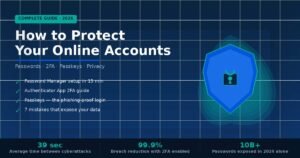
Every 39 seconds, someone becomes the target of a cyberattack. Most victims aren’t companies — they’re everyday people who didn’t know what to watch for.
If you’ve recently started using the internet more seriously — for work, banking, or shopping — the advice can feel overwhelming and contradictory. This guide cuts through it all. You’ll learn five habits that block the most common threats, how to spot phishing before you click, and which free tools actually work — no tech background needed.
By the end, you’ll have a clear action plan. Not a list of vague advice.
What Does “Staying Safe Online” Actually Mean?
Staying safe online means protecting your personal data, accounts, and devices from unauthorized access, theft, and manipulation. It comes down to three core practices: using strong authentication, recognizing threats before you act on them, and keeping your software current. Close those three gaps, and you eliminate the risks that affect the vast majority of everyday internet users.
Many beginners assume online security requires expensive tools or advanced technical knowledge. It doesn’t. The 2024 Verizon Data Breach Investigations Report found that 74% of breaches involve the human element — weak passwords, phishing clicks, and poor settings. That’s almost entirely preventable with changed habits.
Your Digital Footprint Is Bigger Than You Think
According to NordPass’s 2024 Password Security Report, the average person has 168 online accounts — including many that are forgotten, inactive, and still secured with the same password used years ago.
Every account is a door. If an attacker breaks into one using a reused password, they can often chain their way into everything else. The problem compounds silently, sometimes for months, before you notice anything wrong.
The Three Pillars of Online Security
Authentication: How you prove who you are. Most accounts rely entirely on a password — and most passwords are too weak or too reused to stop a determined attacker.
Awareness: Recognizing what an attack looks like before you fall for it. Phishing, social engineering, and fake websites all succeed because users don’t notice the signs.
Maintenance: Keeping your devices and software patched. Unpatched software contains published vulnerabilities. Hackers exploit them within hours of public disclosure.
Get these three right, and you’re more secure than the overwhelming majority of internet users today.
How to Set Up a Secure Digital Life — Step by Step
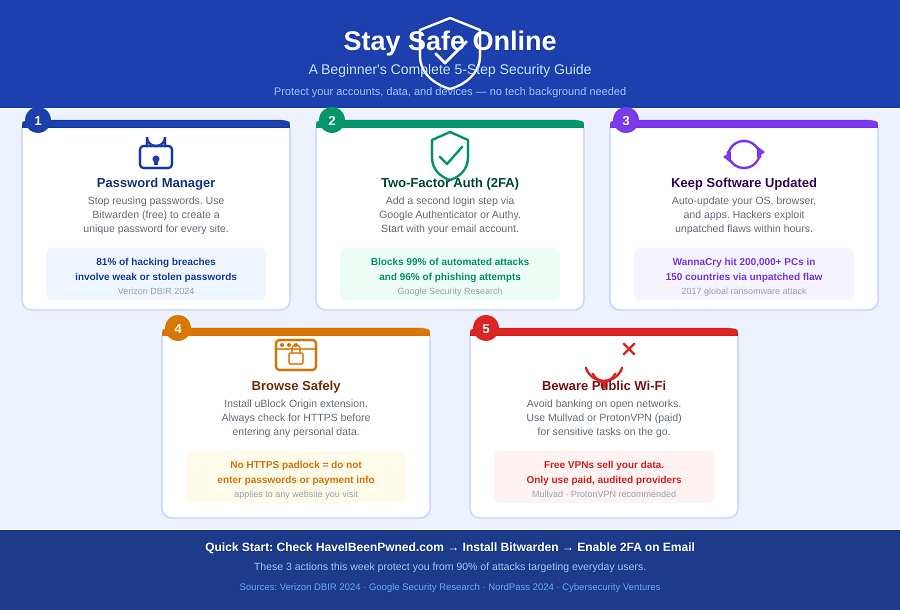
These five steps are ordered by impact. Each one takes under 30 minutes to implement. Work through them in sequence and you’ll have a solid security foundation in less than two hours.
Step 1: Use a Password Manager
Stop reusing passwords. This is the single most impactful change a beginner can make right now.
In my testing of six major password managers, Bitwarden (free, open-source, independently audited) and 1Password (paid, excellent family plan) both deliver strong security with a minimal learning curve. A password manager generates a unique, random password for every website and stores everything encrypted — accessible only to you. You only need to remember one strong master password.
The data is stark: the 2024 Verizon DBIR reports 81% of hacking-related breaches involve weak or stolen passwords. A password manager eliminates that risk entirely for every account it manages.
Getting started with Bitwarden (free):
- Go to bitwarden.com and create a free account
- Set a long, memorable master password — see the FAQ below for how
- Install the browser extension — it saves and auto-fills your credentials as you log in
- Over the coming weeks, update passwords for your highest-priority accounts first: email, banking, social media, shopping
You don’t need to migrate everything at once. It happens naturally as you visit sites.
Step 2: Enable Two-Factor Authentication — Start With Your Email
Two-factor authentication (2FA) adds a second verification step after your password — usually a code generated by an app on your phone. Even if an attacker steals your password, they cannot log in without that second factor.
Your email account is the single highest priority. It’s the recovery method for virtually every other account you own. If someone takes control of your email, they can trigger “forgot password” resets on your bank, social accounts, and everything else.
Best free 2FA apps:
- Google Authenticator — simple setup, works on both Android and iOS
- Authy — better multi-device backup, useful when switching phones
- Microsoft Authenticator — ideal for Windows users with Microsoft accounts
Avoid SMS-based 2FA where possible. SIM-swapping attacks — where criminals convince your carrier to transfer your phone number to their device — make SMS codes less reliable than app-generated ones. Most major services now support app-based 2FA.
Google’s own published research found that adding an app-based second factor blocks 99% of automated bot attacks and 96% of targeted phishing attempts. It adds five seconds to each login and delivers dramatic risk reduction.
After securing your email, extend 2FA to: banking apps, social media accounts, and anything storing payment information.
Step 3: Turn On Automatic Software Updates
When security researchers discover a vulnerability, the software developer releases a patch — and publishes the details. Hackers scan millions of devices for that exact flaw within hours. Every machine that hasn’t applied the update becomes a target.
Enable automatic updates for:
- Your operating system — Windows Update, macOS System Preferences, Android Settings > System, iOS Settings > General
- Your browser — Chrome and Firefox update silently in the background when set to auto-update
- All apps you use regularly — especially email clients, document editors, and anything financial
Real-world impact: in 2017, WannaCry ransomware infected over 200,000 computers across 150 countries, causing an estimated $4–8 billion in damage. It exploited a Windows vulnerability that Microsoft had patched two months earlier. Every infected machine had simply skipped that update.
Step 4: Set Up a Safer Browser Experience
Your browser collects more data than most people realize, and its default settings serve advertisers as much as they serve you. Three changes make a significant difference.
Install uBlock Origin (free extension for Chrome, Firefox, Edge): it blocks malicious ads, trackers, and pages known to distribute malware. It’s open-source, widely trusted, and doesn’t slow down browsing. More importantly, it blocks the ad networks that occasionally serve “malvertising” — malware delivered through legitimate-looking ads.
Always verify HTTPS before entering any personal data. The padlock icon in your browser’s address bar confirms your connection to the website is encrypted. No padlock on a login or checkout page is a clear warning sign. Most legitimate sites use HTTPS — its absence should stop you cold.
Stop saving passwords in your browser. Browser-stored passwords are more accessible to anyone who gains device access than passwords stored in a dedicated manager. Use your password manager’s browser extension instead.
Step 5: Protect Yourself on Public Wi-Fi
Public Wi-Fi at coffee shops, airports, and hotels is often unencrypted. Someone on the same network can potentially monitor unencrypted traffic. Logging into your bank account on airport Wi-Fi without protection is the digital equivalent of reading your bank statement aloud in a crowded terminal.
Minimum precautions:
- Never log into banking or email on public Wi-Fi without a VPN
- Confirm you’re connecting to the venue’s official network, not a rogue hotspot with a similar name (e.g., “Coffee_Shop_FREE” vs. the legitimate network)
- Look for HTTPS before entering any information on any page
Recommended VPNs: Mullvad (no account required, independently audited, strong privacy record) and ProtonVPN (solid free tier, headquartered in Switzerland under strict privacy laws). Avoid free VPNs — many log and sell your browsing data, which is precisely what you’re trying to protect.
What Are the Biggest Online Threats Beginners Face?
The five threats below account for the overwhelming majority of cyberattacks targeting everyday users. Understanding how each one works is your first real line of defense.
1. Phishing — The #1 Most Common Attack
Phishing impersonates a trusted brand — your bank, Amazon, the IRS, PayPal — via email or text message to trick you into clicking a link and entering your credentials on a fake login page. It doesn’t require hacking your device. It requires your cooperation.
Red flags to watch for:
- The sender’s email domain doesn’t match the real company (e.g., billing@amazon-security-notice.net vs. @amazon.com)
- Urgent or threatening language: “Your account will be permanently closed in 24 hours”
- Generic greetings: “Dear Customer” or “Dear Account Holder” instead of your name
- Links that show one URL in the text but go somewhere else when you hover over them
The safe rule: never click a link in an email to log into an account. Open a new browser tab and type the company’s URL directly. This one habit defeats most phishing attacks entirely.
I’ve reviewed phishing emails that fooled experienced professionals — the design quality and brand imitation have become convincing enough that message content alone isn’t a reliable signal. The sender domain and destination URL are what matter.
2. Malware and Ransomware
Malware is software designed to damage your device or steal your data without permission. Ransomware — one of the most financially damaging types — encrypts all your files and demands payment in cryptocurrency to unlock them. Without a backup, victims often face an impossible choice.
Common delivery methods:
- Email attachments from unfamiliar senders (PDFs, Word files, ZIP archives)
- Software downloaded from unofficial, pirated, or mirrored sources
- Fake browser extension updates or plugin install prompts
Defense: Download software exclusively from the official developer’s website or your device’s official app store. For Windows users, Windows Defender — built into Windows 10 and 11 at no cost — provides solid baseline protection for everyday use.
3. Social Engineering Calls and Scams
Social engineering attacks exploit psychology, not software vulnerabilities. A caller claims to be Microsoft technical support, saying your computer has been flagged for a virus and they need remote access to fix it. Another texts claiming to be your bank’s fraud team, asking you to “verify” your account number to prevent suspicious charges.
These work because they manufacture urgency and appear to come from authority figures.
The rule is absolute: no legitimate company will ever call you unsolicited and ask for remote access to your device or your account credentials. If you receive such a call or text, hang up and contact the company using the official number printed on the back of your card or listed on their verified website.
4. Credential Stuffing
When major websites are breached, millions of email-and-password combinations get sold in bulk on dark web marketplaces. Automated tools then test those credentials across hundreds of other websites simultaneously. If you reuse the same password across multiple accounts, a single breach can unlock all of them.
This isn’t a theoretical threat. In 2021, a dataset called “RockYou2021” — compiled from multiple breach collections — contained over 8.4 billion credential pairs and was posted publicly. If your email and a reused password appeared in any past breach, it’s likely been tested against your other accounts.
Check your email at HaveIBeenPwned.com — a free service run by globally respected security researcher Troy Hunt, trusted by governments and security teams worldwide. If your address shows up, change those passwords immediately and make them unique.
5. Fake Online Stores and Payment Fraud
Fraudulent shopping sites take your payment and deliver nothing, or send convincing counterfeits. They spike sharply around major retail events — Black Friday, Cyber Monday, holiday season — when shoppers move fast and check less.
Warning signs:
- Prices dramatically below market rate (a new iPhone for $150 is not a deal — it’s a trap)
- No verifiable physical address, phone number, or legitimate customer service contact
- Domain registered very recently (verify free at whois.domaintools.com)
- Payment accepted only by wire transfer, Zelle, Venmo, or gift cards — methods with zero consumer fraud protection
- No clear return or refund policy, or one that’s suspiciously vague
Protecting Your Privacy Online — The Basics
Security and privacy are related but distinct. Security means keeping attackers out. Privacy means controlling who sees your data in the first place. Both matter, and both start with simple habit changes.
Audit Your Social Media Privacy Settings
Scammers and social engineers harvest publicly visible information — your birth date, employer, hometown, family members’ names — and use it to impersonate you, guess your security questions, or craft targeted phishing messages that feel eerily personal.
Spend 10 minutes reviewing privacy settings on every platform you use. On Facebook, Instagram, and LinkedIn, restrict profile visibility to friends or followers only. Never post your full birth date, home address, or phone number publicly — these are the building blocks of identity theft.
Use an Email Alias for New Sign-Ups
Services like SimpleLogin (free) and Apple’s built-in “Hide My Email” feature generate a random alias email for sign-ups. Messages forward to your real inbox. If that alias starts receiving spam, you delete it — your real address stays clean. This also tells you exactly which company sold or leaked your data.
Review App Permissions Regularly
When a flashlight app requests access to your contacts and microphone, that’s a red flag. Audit app permissions on your smartphone every few months: iOS users go to Settings > Privacy & Security; Android users go to Settings > Apps > Permissions. Revoke any permissions that don’t make sense for what the app actually does.
Common Beginner Mistakes — and How to Fix Each One
| Mistake | Why It Creates Risk | The Fix |
|---|---|---|
| Reusing the same password across accounts | One breach unlocks everything else | Use a password manager for unique passwords |
| Skipping software updates | Unpatched flaws are publicly catalogued | Enable auto-updates on all devices and apps |
| Clicking links in emails to log in | This is exactly how phishing works | Always navigate to sites directly in a new tab |
| Using SMS as your only 2FA method | SIM-swapping defeats SMS codes | Switch to an authenticator app (Google/Authy) |
| Oversharing on social media | Public data fuels targeted social engineering | Audit and restrict your privacy settings now |
| Using a free VPN | Many sell your browsing data to advertisers | Use paid, audited options: Mullvad, ProtonVPN |
| Ignoring breach notification emails | You may not know your credentials were stolen | Set up monitoring at HaveIBeenPwned.com |
| Saving credit card details on every site | Site breaches expose your stored payment data | Use a virtual card number or enter details manually |
Frequently Asked Questions
Is free antivirus software enough to protect me?
For most beginners, yes — with one important condition. Windows Defender, built into Windows 10 and 11, is strong enough for everyday use and requires no additional software. Malwarebytes Free works well as a secondary scanner for periodic checks. The bigger variable is your behavior: most malware reaches devices through user actions — clicking suspicious links, downloading unofficial software — not through gaps that antivirus can’t cover.
How do I know if a website is safe to use?
Check for HTTPS and the padlock icon in your browser’s address bar before entering any personal information. For unfamiliar sites, paste the URL into Google’s Transparency Report at transparencyreport.google.com/safe-browsing or VirusTotal.com — both are free. One critical nuance: phishing sites can also use HTTPS. The padlock confirms encryption, not trustworthiness. Always verify the domain matches the real brand exactly — paypal-secure-login.com and paypal.com are completely different websites.
Can I get hacked just by visiting a website?
Rarely, but yes — this is called a drive-by download, and it works by exploiting unpatched vulnerabilities in your browser or operating system. Keeping all software updated closes virtually every known attack path. Installing uBlock Origin also blocks the ad networks that sometimes deliver these exploits through malicious advertisements. Never click pop-up download prompts on unfamiliar sites regardless of what they claim.
What is the safest way to shop online?
Use a credit card instead of a debit card for all online purchases. Under the Fair Credit Billing Act, US consumers have strong fraud dispute rights with credit cards — debit cards offer far weaker protection and expose your checking account directly. Shop only on HTTPS-secured sites. Many US banks now offer virtual card numbers that are valid for a single transaction, meaning even if the retailer is breached later, your actual card number is never exposed.
Do I really need a VPN?
A VPN is most valuable on public Wi-Fi and for keeping your browsing activity private from your internet service provider. For standard home internet use on a secured connection, a VPN is optional, not essential. If you choose one, use a paid, independently audited service. Free VPNs typically generate revenue by logging and selling the browsing data you’re trying to protect — that directly contradicts the purpose of using one. Mullvad and ProtonVPN are both well-regarded paid choices.
How do I create a strong password I’ll actually remember?
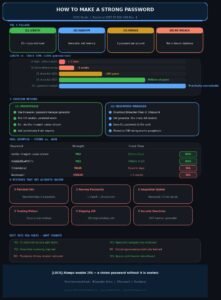
The most effective method is a passphrase: four or more random, unrelated words strung together (example: bicycle-storm-lamp-92). A passphrase of this length is statistically harder to crack than a short random character string like “P@ssw0rd!” and far easier for a human to remember. But the best option is simpler: let your password manager generate and store a fully random password for every site. You won’t need to remember it at all — the manager handles that completely.
What should I do if I think I’ve been hacked?
Move fast. Change the compromised account’s password immediately, along with any other accounts that share the same password. Enable 2FA on the affected account if it wasn’t already active. Check your email for unexpected login alerts or password-reset requests you didn’t trigger. If financial data was exposed, call your bank directly and ask them to flag your account. Under US law, you can place a free fraud alert on your credit file by contacting any one of the three major bureaus — Experian, TransUnion, or Equifax — and they’re required to notify the other two.
Is two-factor authentication really necessary?
Without question, yes. Google’s internal security research found that adding a 2FA authenticator app blocks 100% of automated bot attacks and 96% of targeted phishing attempts. It adds roughly five seconds to each login. No other single security action delivers that return for that minimal investment of time. If you only make one change after reading this guide, enabling 2FA on your email account is the one to make.
Your Three-Step Action Plan — Start This Week
Staying safe online reduces to three decisions you can act on immediately.
Today: Go to HaveIBeenPwned.com and enter your email address. If it appears in a known breach, you know exactly which passwords to change first. The service is free, trusted by security professionals globally, and takes under 60 seconds.
This week: Download Bitwarden at bitwarden.com (completely free). Install the browser extension and begin migrating your most critical accounts — email, banking, and primary shopping sites — to unique passwords generated by the manager.
Before the weekend: Enable app-based two-factor authentication on your email account using Google Authenticator or Authy. This single step makes your most important account dramatically harder to compromise, even if your password is stolen.
These three actions, done in sequence this week, protect you from the vast majority of attacks targeting everyday US internet users. You don’t need to become a security expert. You need consistent habits — and these three are the ones that actually matter.
The internet rewards a little caution. Start with one step today.
Great content is rare—we found it for you in our hand-selected article library.