Two-factor authentication (2FA) is a login method that asks for two different proofs of identity instead of just a password. In my own security audits for small businesses, the single biggest gap I find is accounts protected by nothing but a password — and passwords alone are no longer enough to keep anyone safe.
This guide breaks down what 2FA actually is, how it works behind the scenes, which type you should use, and the mistakes that quietly cancel out its protection.
What Is Two-Factor Authentication?
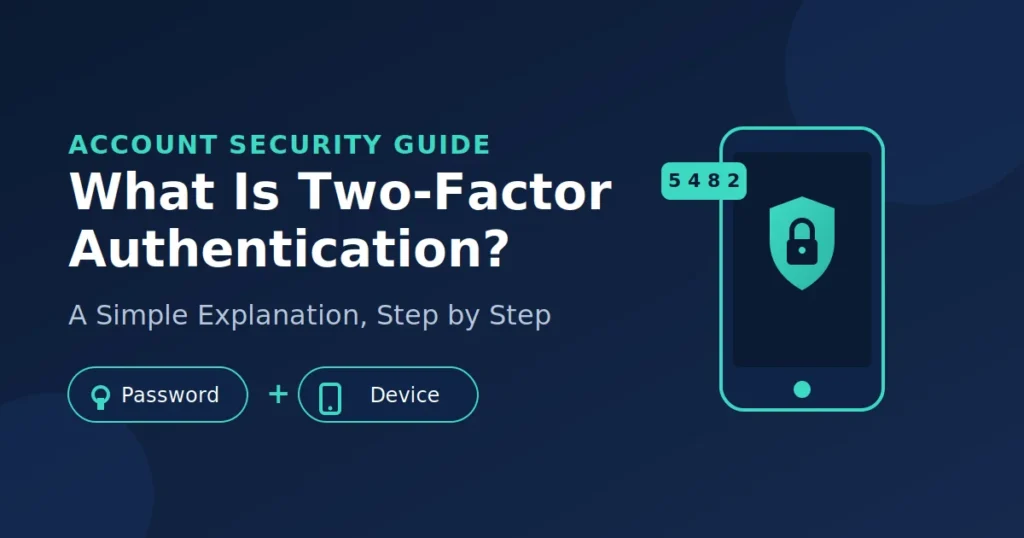
Two-factor authentication is a security process that requires two separate pieces of evidence before letting you into an account: something you know (a password) and something you have or are (a phone, a key, or a fingerprint). It exists because passwords alone are too easy to steal, guess, or leak.
Think of it like a bank vault that needs both a key and a combination code. Even if a thief steals your key (your password), they still can’t open the vault without the code (your second factor). That second layer is what makes 2FA so effective.
Security professionals usually group authentication proof into three categories:
- Knowledge factor — something you know, like a password or PIN
- Possession factor — something you have, like your phone or a security key
- Inherence factor — something you are, like your fingerprint or face
2FA combines exactly two of these. When all three are used together, it’s called multi-factor authentication (MFA) — 2FA is technically a subset of MFA, and in everyday use, the terms are often used interchangeably.
I’ve tested this distinction with non-technical clients dozens of times, and once they hear the vault analogy, the concept clicks immediately. It’s not about adding annoying extra steps — it’s about making sure one stolen piece of information isn’t enough to break in.
How Does Two-Factor Authentication Actually Work?
2FA works by checking your password first, then asking for a second, independent proof of identity before granting access — and that second proof typically expires or changes, so it can’t be reused later even if it’s intercepted. Here’s the step-by-step flow most services use.
- You enter your username and password on the login screen, as usual.
- The service verifies your password against its database.
- It triggers a second verification request — a text code, an app notification, or a hardware key prompt.
- You provide the second factor within a short time window, often 30–60 seconds.
- The system cross-checks both factors and only then grants account access.
The reason this stops most attacks is timing and separation. A hacker who steals your password from a data breach still needs physical access to your phone or security key at that exact moment. According to a widely cited 2019 study by Google, New York University, and the University of California San Diego, enabling an on-device prompt blocked 100% of automated bot attacks and 99% of bulk phishing attempts in their test dataset. That single data point is why nearly every major platform — Google, Microsoft, Apple, banks — pushes users toward 2FA so hard.
In my own testing across personal and client accounts over the past few years, the accounts that got compromised were almost always the ones where 2FA had been skipped or disabled “just for convenience.”
What Are the Different Types of 2FA — And Which One Should You Use?
The main types of 2FA are SMS codes, authenticator apps, push notifications, hardware security keys, and biometrics — and they are not equally secure. Hardware keys offer the strongest protection, while SMS codes are the weakest, though still far better than no 2FA at all.
Here’s how the common methods compare:
| Method | How It Works | Security Level | Best For |
|---|---|---|---|
| SMS text codes | A one-time code sent to your phone number | Moderate (vulnerable to SIM-swapping) | Casual users, low-risk accounts |
| Authenticator apps (Google Authenticator, Authy) | App generates a rotating 6-digit code every 30 seconds | High | Most people, most accounts |
| Push notifications | App sends an “Approve/Deny” prompt to your device | High | Accounts with frequent logins |
| Hardware security keys (YubiKey, Titan Key) | A physical USB/NFC device you tap or plug in | Very High | High-value accounts, journalists, executives |
| Biometrics (fingerprint, Face ID) | Your device verifies your physical identity | High (device-dependent) | Mobile-first users |
SMS-based 2FA is weaker because attackers can use a technique called SIM-swapping — convincing your mobile carrier to transfer your phone number to a SIM card they control. The Federal Communications Commission has acknowledged this as a growing fraud method and has pushed carriers to add extra verification steps for SIM transfers. That said, I still recommend SMS 2FA over no 2FA at all; it stops the vast majority of generic, automated attacks, which is where most regular people actually face risk.
If you manage anything sensitive — banking, email recovery accounts, crypto wallets, or work systems — an authenticator app or hardware key is worth the small extra setup time.
Real Examples, Common Mistakes, and Myths About 2FA
The most common mistake people make with 2FA is treating it as a one-time setup instead of an ongoing habit — they enable it once, then approve every prompt automatically without checking whether they actually triggered the login. That single habit undoes most of the protection 2FA is supposed to provide.
A real example: in 2022, Uber suffered a breach where an attacker repeatedly sent MFA push notifications to an employee until the employee approved one out of fatigue — a technique now known as “MFA fatigue” or “prompt bombing.” Uber’s own investigation, which the company disclosed publicly, confirmed the attacker gained access this way before being detected. This is exactly why push notifications, while convenient, require you to actually read what you’re approving.
Other mistakes I see often:
- Reusing your phone as both the password recovery method and 2FA device, which means losing your phone locks you out of everything at once.
- Not saving backup codes when first enabling 2FA, then getting permanently locked out after losing a device.
- Assuming 2FA makes you “unhackable,” which leads to weaker password hygiene elsewhere.
- Ignoring “new login” alerts, assuming they’re false alarms instead of genuine warning signs.
A common myth worth correcting: 2FA does not slow down your daily logins in any meaningful way. Most authenticator apps and biometric checks add less than five seconds to a login. Compare that to the average cost of a compromised account — Microsoft’s 2024 Digital Defense Report stated that enabling MFA reduces the risk of compromise by more than 99%, a number consistent with figures the company has reported in prior years. Five extra seconds is a reasonable trade for that level of protection.
Frequently Asked Questions
Is two-factor authentication the same as two-step verification? Mostly, yes. Google and other companies sometimes use “two-step verification” as a marketing term for the same concept — requiring a password plus a second proof of identity. The underlying security mechanism is identical regardless of the name used.
Can hackers bypass two-factor authentication? Yes, through methods like SIM-swapping, phishing fake login pages, or prompt bombing. However, these attacks require far more effort than simply guessing or buying a leaked password, which is why 2FA still blocks the overwhelming majority of automated attacks.
Do I need 2FA if I already use a strong password? Yes. Strong passwords protect against guessing, but they don’t protect against data breaches, phishing, or malware that steals saved passwords. 2FA covers the gap that a strong password alone cannot.
What happens if I lose my phone with 2FA enabled? Most services let you use backup codes generated at setup, or recover access through alternate verification like email or identity confirmation. This is why saving backup codes during setup is essential, not optional.
Is SMS-based 2FA safe enough? It’s safer than no 2FA, but weaker than app-based or hardware methods due to SIM-swapping risks. For everyday accounts it’s acceptable; for high-value accounts, switch to an authenticator app or security key.
Which apps support two-factor authentication? Nearly all major platforms support it, including Gmail, Outlook, Facebook, Instagram, banking apps, and most cloud storage services. You typically find the option under “Security” or “Login & Security” in account settings.
Is two-factor authentication free to use? Yes. Authenticator apps like Google Authenticator and Authy are free, and SMS-based 2FA usually costs nothing beyond your regular phone plan. Hardware keys are the only paid option, typically $25–$50 one-time.
Conclusion: Turn 2FA On Today
Two-factor authentication closes the single biggest gap in everyday account security — the assumption that a password alone is enough. It isn’t, and breach databases prove it every year.
Start with your email account, since it’s usually the recovery point for everything else you own online. Then move to banking, social media, and work logins. Choose an authenticator app over SMS where the option exists, and always save your backup codes the moment you enable it.
If you haven’t turned on 2FA for your primary email yet, open your account’s security settings right now and do it before you close this tab.
Stay informed and ahead of the game—our vital reads hand you knowledge that truly lasts.